Wix Website ADA Compliance Check: A Practical Guide for 2026
What if an accessibility scan looks clean but your Wix site still has barriers? Automated tools can flag common issues, but they can’t judge every…

What if an accessibility scan looks clean but your Wix site still has barriers? Automated tools can flag common issues, but they can’t judge every page element or how a person with a disability experiences your site. A wix website ada compliance check is a useful first step, not a compliance verdict.
Wix’s Accessibility Wizard and live-site Accessibility Monitor can help surface potential issues. A free automated scanner can add another initial check for publicly accessible pages. Each tool has limits, so review the results and follow up with hands-on testing.
This guide walks you through a Wix-focused process: choose pages to check, run an initial scan, interpret what automated results can and can’t tell you, then prioritize fixes and further testing. You’ll finish with a clearer action plan, without mistaking a scan for proof of ADA or WCAG compliance. Accessibility work is ongoing, so keep checking as your site changes.
Key Takeaways
- Use a wix website ada compliance check to identify potential barriers, not to declare your site compliant.
- Check representative published pages and important user journeys, not just the homepage.
- Compare automated findings with Wix’s checks and hands-on keyboard or assistive-technology testing.
- Prioritize barriers that block essential tasks, record findings, and retest after meaningful site changes.
- Build a repeatable scan-and-review process so accessibility checks keep pace with Wix updates.
What a Wix website ADA compliance check can and cannot tell you
A Wix website ADA compliance check looks for barriers against relevant accessibility criteria. It can identify issues that may make pages or tasks harder for people with disabilities and point to areas for further review. It cannot certify that a site meets legal requirements.
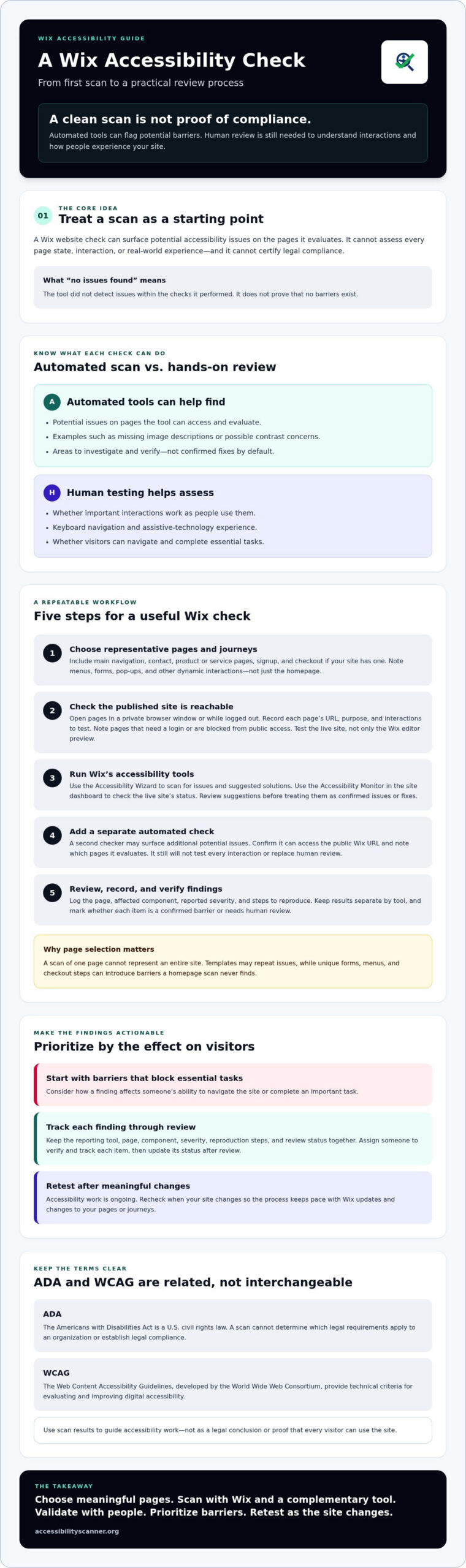
Think of a scan as an early diagnostic. It may flag issues it can detect on the pages it can access, such as missing image descriptions or possible contrast concerns. But it won’t reliably judge every interaction, page state, or real-world experience. If a tool reports no issues, that only means it didn’t detect issues within the checks it performed. It doesn’t prove that no barriers exist.
Does a Wix accessibility scan prove ADA compliance?
No. A scan is an initial check, not legal advice or an official certification. An automated accessibility scan can report potential barriers on the pages it successfully evaluates, but it cannot establish legal compliance or confirm that a site is fully accessible.
Applicable obligations can depend on an organization’s circumstances. If you have legal questions about how the ADA applies to your business or website, consult qualified legal counsel. Use scan findings to guide accessibility work, not as a legal conclusion.
How ADA and WCAG fit into a Wix website check
The Americans with Disabilities Act (ADA) is a U.S. civil rights law. The Web Content Accessibility Guidelines (WCAG), developed by the World Wide Web Consortium, provide technical criteria for evaluating and improving digital accessibility. They are related but not interchangeable: the ADA is law, while WCAG is a technical framework. A scan can’t determine which legal requirements apply or establish that they are identical for every organization.
WCAG helps turn broad accessibility goals into criteria teams can assess, such as whether content is perceivable and site functions can be operated. For a foundational overview of Web accessibility, including how digital design affects people with disabilities, see the linked reference.
Use scan results to start a measured process: check relevant Wix pages, validate important interactions with human review, prioritize barriers by their effect on users, and retest after changes. Automated tools can help focus that work, but they can’t replace human evaluation of whether people can navigate and complete essential tasks.
How to run a Wix website ADA compliance check step by step
A useful check covers the pages and tasks visitors rely on, not just the homepage. Follow this sequence to gather findings you can verify and act on.
- Choose representative pages and journeys. Include your main navigation, contact page, product or service pages, signup process, and checkout if your site has one. Note menus, forms, pop-ups, and other dynamic interactions. Test the published site, not only the Wix editor preview.
- Confirm pages are reachable. Open each page in a private browser window or while logged out. Record the URL, date checked, page purpose, and interactions to test. If a page requires a login or is blocked from public access, note that before trying a URL-based scan.
- Run Wix’s accessibility tools. Wix provides an Accessibility Wizard to scan for issues and suggest solutions, and an Accessibility Monitor on the site dashboard to check the live site’s status. Open the current tools in your Wix account and follow their prompts. Record what each tool flags, but review suggestions before treating them as confirmed issues or fixes.
- Run a separate automated check. Use an external checker as a complementary test. Confirm that it can access the public Wix URL and check which pages it evaluates. A second tool may identify additional potential issues, but it won’t test every interaction or replace human review. You can run a free accessibility scan on compatible, publicly reachable pages.
- Review and record the findings. For each result, log the page, affected component, reported severity, and steps to reproduce it. Mark whether it appears to be a confirmed barrier or needs human review. For example, if a form label is flagged, check whether the field’s purpose is clear to users in context.
A scan of one page cannot represent an entire site. Templates may repeat issues across pages, while unique forms, menus, and checkout steps can introduce barriers that a homepage scan never finds.
Turn results into a usable record
Keep Wix and external scan results separate so you know which tool reported each item. Assign someone to verify and track each finding, then update its status after review. For questions about ADA obligations, consult qualified legal counsel and refer to official ADA web accessibility guidance. A structured record makes it easier to prioritize follow-up checks and retest after changes.
Wix accessibility checker versus manual testing: what each can find
Automated checks and human testing answer different questions. Wix’s accessibility tools and external scanners can flag patterns in page content or code. Keyboard and screen-reader testing can reveal whether people can use menus, forms, and other interactions. A useful Wix website ADA compliance check combines these methods instead of treating any one result as decisive.
What automated Wix accessibility checks are good at finding
Wix’s Accessibility Wizard can scan for issues and suggest solutions. Automated checkers may also flag detectable patterns, such as images that appear to lack text alternatives or possible color-contrast problems. Review each result in context. An image may be decorative, and a flagged contrast combination may need to be checked against the actual text and background.
An automated scan identifies potential accessibility issues within the checks it performs. It does not provide a complete accessibility evaluation. The Web Content Accessibility Guidelines (WCAG) offer technical criteria for evaluating accessibility, but a scan can assess only some criteria automatically.
| Method | Can help detect | May miss | Next step |
|---|---|---|---|
| Wix accessibility tools | Potential issues identified by Wix’s checks and suggested solutions | Whether every flagged item is a real barrier or how a visitor experiences an interaction | Review the suggestion on the published page and verify the result |
| External automated scanner | Detectable patterns such as missing text alternatives or possible contrast concerns | Issues outside its automated checks, inaccessible flows, or context that requires judgment | Confirm each finding and test the relevant page or task |
| Keyboard and assistive-technology review | Navigation, focus order, form behavior, screen-reader output, and task flow | Issues on untested pages or in assistive technologies and contexts not covered | Record reproduction steps and repeat checks after changes |
What requires keyboard, screen-reader, or human review
Use the keyboard alone to move through navigation, activate controls, complete forms, and follow the visible focus indicator. Check that focus order makes sense and that errors are announced or explained clearly. A screen reader can help reveal whether labels, headings, instructions, and control names communicate the page’s meaning in sequence.
These checks take practice. A reviewer needs to know what to test and how to interpret the results. A quick self-test can reveal problems, but it isn’t a substitute for broader evaluation or legal advice. AccessibilityScanner.org provides automated scanning only, not manual audits or fixes. Use automated findings to choose what to investigate, then verify important journeys with human testing.
How to prioritize Wix accessibility findings and retest changes
A long scan report can stall your team if every flag looks equally urgent. For a practical wix website ada compliance check, rank findings by the barrier they create, how many pages they affect, and whether they block an important task. Treat automated severity labels as clues, not a complete priority system.
Which Wix accessibility issues should you address first?
Start with problems that prevent visitors from navigating, completing a form, making a purchase, or accessing essential information. A keyboard trap in checkout, for example, is likely more disruptive than a minor spacing issue. Check whether the same component or template appears across multiple pages. A shared navigation problem may affect more visitors than an issue limited to one page.
Before assigning work, confirm the finding and record its impact. Note what a visitor is trying to do, what happens instead, which pages are affected, and how to reproduce the issue. If a scan flags a contrast concern, inspect the affected text and background in context. The label alone doesn’t tell you how serious the barrier is.
How to verify an accessibility fix
Retest the exact page and interaction using the method that first exposed the issue. If a scanner flagged an image, review the image and its text alternative. If keyboard navigation revealed a problem, repeat the same keyboard steps after the change. Then check related interactions, since a visual adjustment can affect focus visibility or contrast elsewhere.
Keep dated scan results and manual observations together. Compare new results with the original record, and note whether the issue is resolved, still present, or needs more review. A passing automated scan doesn’t confirm that every user can complete the task, and resolving reported findings doesn’t eliminate legal exposure.
Reusable issue-tracking checklist:
- Page and component: Record the URL and affected element.
- User impact: Describe the task blocked or made harder.
- Evidence: Save the scan result or observation, plus reproduction steps.
- Scope and priority: Note other pages using the same component, then rank by impact and reach.
- Retest record: Add the date, method used, outcome, and any remaining concern.
Use the log to guide the next review, not to claim the site is legally compliant. To gather automated findings for your Wix pages, run a free accessibility scan, then validate and prioritize the results.
Build a repeatable Wix accessibility check with an automated scanner
A single scan gives you a snapshot. A repeatable process helps you catch potential barriers as your Wix site changes. Use the same cycle each time: scan, review, assign, validate, and document. This turns a wix website ada compliance check into a practical maintenance habit, not a one-time box to tick.
When should Wix site owners run another accessibility check?
Run checks after a redesign, a new page or component launch, navigation changes, or updates to important user journeys such as signup and checkout. New content can introduce issues too, especially when it includes images, forms, or embedded features. Set a review cadence that fits how often your site changes and what your team can manage. Recheck affected pages after significant updates rather than relying on an old scan.
Keep a simple log with scan dates, tested URLs, findings, assigned owners, and retest outcomes. That record helps your team see what changed and which items still need attention.
Start with an automated check, then close the gaps
A free automated scanner can provide an initial check and immediate results for compatible, publicly accessible Wix pages. Confirm that the scanner can access the URL you want to test. Review its findings, decide which need human validation, assign follow-up, and retest the affected page after changes. Include keyboard or assistive-technology checks when the issue involves navigation, forms, or other interactions.
AccessibilityScanner.org provides automated scanning only. It doesn’t perform manual audits, make site fixes, or provide legal review, and scan results don’t establish ADA or WCAG compliance. Use the findings as a starting point for follow-up, not a guarantee that every barrier has been found or resolved.
To begin the cycle, check a Wix page with the free scanner, then record what it flags and verify the results. Keep expectations realistic: accessibility needs ongoing review, especially as pages, templates, and features change.
Make Your Next Accessibility Check Part of the Process
A wix website ada compliance check is most useful when it starts a cycle, not when it ends with a score. Check representative published pages and important visitor tasks. Treat automated findings as leads to review, then validate key interactions and prioritize barriers by their effect on users.
Keep a record of findings and retest after meaningful changes to content, templates, navigation, or features. That gives your team a clearer view of what has been checked and what still needs attention. A scan can help detect potential issues, but it can’t confirm legal compliance or replace human evaluation.
Start with a free automated scan. It provides immediate automated issue detection and helps website owners check their sites independently. Confirm that the Wix page is publicly reachable and compatible, then review the results and decide what to test next. Run a free automated accessibility scan to get your first set of findings.
Accessibility work takes ongoing attention, but each careful check gives you a practical next step. Keep reviewing, keep retesting, and make your Wix site easier for more people to use.
Frequently Asked Questions
How do I check whether my Wix website is ADA compliant?
Start with a wix website ada compliance check on representative published pages, including key journeys such as navigation, contact forms, signup, and checkout. Use Wix’s accessibility tools and an automated scanner to identify potential issues, then review important interactions with keyboard and assistive-technology testing. Record findings, prioritize barriers by user impact, and retest after changes. A scan can inform your review, but it can’t determine legal compliance. Consult qualified legal counsel with ADA questions.
Does Wix have an accessibility checker?
Yes. Wix provides an Accessibility Wizard that scans for potential issues and suggests solutions, as well as an Accessibility Monitor on the site dashboard for checking the live site’s accessibility status. Use these tools to spot issues and guide follow-up, not as proof that every barrier has been found. Review flagged items on published pages and test important tasks directly, since automated checks can’t assess every part of the user experience.
Can an ADA compliance checker scan a Wix website?
Yes, an automated checker may scan publicly accessible Wix pages if it supports the page URL and can reach its content. AccessibilityScanner.org offers a free automated web accessibility checker for independently checking websites. Test individual pages and confirm the scanner can access them. Private, restricted, or dynamic content may not be covered as expected. The results identify potential barriers for follow-up, but they don’t establish ADA compliance or replace human review.
What accessibility issues can a Wix website scan find?
A scan may flag detectable issues such as missing text alternatives for images, possible color-contrast problems, or other patterns its checks can identify. Treat each result as something to verify. For example, an image may be decorative and not need a text alternative, while a contrast flag needs review in its actual visual context. Scanners may miss issues involving keyboard access, focus order, form behavior, or whether instructions make sense to users.
Is a Wix website ADA compliant if it passes an accessibility scan?
No. A clean scan only means the tool didn’t detect issues within the pages and checks it evaluated. It doesn’t prove that the full site is accessible or legally compliant. Automated tools can miss barriers that require human judgment, such as whether visitors can complete a form or understand an error message. Review results alongside keyboard and assistive-technology testing, and seek qualified legal counsel for questions about applicable ADA obligations.
How often should I run an accessibility check on my Wix website?
Run another check after meaningful changes, such as a redesign, new page or component, navigation update, or change to a key journey like signup or checkout. Choose a recurring review cadence that fits your site’s update frequency and your team’s capacity. Keep dated scan results, findings, owners, and retest outcomes. Recheck affected pages after fixes, too. Accessibility review is ongoing because new content and features can introduce barriers.
Frequently Asked Questions
How do I check whether my Wix website is ADA compliant?
Start with a wix website ada compliance check on representative published pages, including key journeys such as navigation, contact forms, signup, and checkout. Use Wix’s accessibility tools and an automated scanner to identify potential issues, then review important interactions with keyboard and assistive-technology testing. Record findings, prioritize barriers by user impact, and retest after changes. A scan can inform your review, but it can’t determine legal compliance. Consult qualified legal counsel with ADA questions.
Does Wix have an accessibility checker?
Yes. Wix provides an Accessibility Wizard that scans for potential issues and suggests solutions, as well as an Accessibility Monitor on the site dashboard for checking the live site’s accessibility status. Use these tools to spot issues and guide follow-up, not as proof that every barrier has been found. Review flagged items on published pages and test important tasks directly, since automated checks can’t assess every part of the user experience.
Can an ADA compliance checker scan a Wix website?
Yes, an automated checker may scan publicly accessible Wix pages if it supports the page URL and can reach its content. AccessibilityScanner.org offers a free automated web accessibility checker for independently checking websites. Test individual pages and confirm the scanner can access them. Private, restricted, or dynamic content may not be covered as expected. The results identify potential barriers for follow-up, but they don’t establish ADA compliance or replace human review.
What accessibility issues can a Wix website scan find?
A scan may flag detectable issues such as missing text alternatives for images, possible color-contrast problems, or other patterns its checks can identify. Treat each result as something to verify. For example, an image may be decorative and not need a text alternative, while a contrast flag needs review in its actual visual context. Scanners may miss issues involving keyboard access, focus order, form behavior, or whether instructions make sense to users.
Is a Wix website ADA compliant if it passes an accessibility scan?
No. A clean scan only means the tool didn’t detect issues within the pages and checks it evaluated. It doesn’t prove that the full site is accessible or legally compliant. Automated tools can miss barriers that require human judgment, such as whether visitors can complete a form or understand an error message. Review results alongside keyboard and assistive-technology testing, and seek qualified legal counsel for questions about applicable ADA obligations.
How often should I run an accessibility check on my Wix website?
Run another check after meaningful changes, such as a redesign, new page or component, navigation update, or change to a key journey like signup or checkout. Choose a recurring review cadence that fits your site’s update frequency and your team’s capacity. Keep dated scan results, findings, owners, and retest outcomes. Recheck affected pages after fixes, too. Accessibility review is ongoing because new content and features can introduce barriers.
Related guides

WCAG Guidelines in Plain English: Principles, Levels, and Practical Meaning
What if treating accessibility as a pass-or-fail checklist leaves the biggest barriers untouched? The wcag guidelines can feel like a maze of…
Read: WCAG Guidelines in Plain English: Principles, Levels, and Practical Meaning
WCAG Compliance Scanner: How to Choose the Right Tool
What if a clean scan gives you confidence while users still face barriers? A wcag compliance scanner can flag common issues, but an automated result…
Read: WCAG Compliance Scanner: How to Choose the Right Tool
Automated Accessibility Scanner: Build a Practical Compliance Monitoring Workflow
A clean scan doesn’t prove your website is accessible. An automated accessibility scanner can quickly flag detectable barriers, but a passing result…
Read: Automated Accessibility Scanner: Build a Practical Compliance Monitoring Workflow