ADA Website Compliance Test: A Practical Checklist for 2026
What should an ada website compliance test actually tell you? A clean scan can feel reassuring, but automated tools only flag issues they can detect….

What should an ada website compliance test actually tell you? A clean scan can feel reassuring, but automated tools only flag issues they can detect. They can’t confirm that someone can navigate your site by keyboard, understand its forms, or use it with assistive technology. Treat a passing result as a starting point, not proof that every visitor can use your website.
A repeatable process helps you move beyond a scan score. This checklist explains what automated scanning can reveal, what needs hands-on testing, and how to prioritize follow-up. Start with a free automated accessibility checker to spot detectable issues, then review key pages and tasks yourself. Check page structure, images, contrast, links, forms, keyboard access, and more. The goal is to understand where people may encounter barriers, decide what needs closer investigation, and plan practical next steps.
Key Takeaways
- Use an ada website compliance test as one part of a broader review, not as proof that every visitor can use your site.
- Check key page elements, including image text, contrast, headings, forms, and keyboard navigation.
- Start with high-value pages such as your homepage, navigation, contact form, and conversion pages.
- Separate confirmed barriers from automated flags that need context or hands-on testing.
- Prioritize follow-up by user impact, how many pages are affected, and whether a barrier blocks an essential task.
What an ADA Website Compliance Test Can, and Cannot, Tell You
An accessibility test can reveal barriers. It can’t make a legal determination or certify that your website complies with the Americans with Disabilities Act (ADA). A scan result is evidence about detected conditions, not a compliance verdict.
Concise definition: An ADA website compliance test is a structured check for website accessibility barriers. It can combine technical criteria with user-focused checks to identify issues for review. The results can show where people may encounter friction, but they don’t guarantee that every visitor can complete every task.
How ADA and WCAG relate to website testing
The ADA and the Web Content Accessibility Guidelines (WCAG) are related, but they aren’t interchangeable. WCAG provides technical criteria that organizations commonly use to guide practical checks. As of October 2026, WCAG 2.2 is the current W3C Recommendation; a specific Department of Justice rule for state and local government entities requires WCAG 2.1 Level AA. Requirements can depend on the organization and context, so a test result alone doesn’t determine legal compliance.
Use WCAG to structure what you inspect, not as a promise of legal protection. For a broader overview of Web accessibility and barriers people may face online, see the linked reference. The ADA context is another reason to treat testing as an ongoing review rather than a one-time pass or fail.
What a useful website test should cover
A useful review checks the parts of the site people rely on to find information and complete tasks. Include page content, navigation, images, forms, and interactive controls. For example, check whether an image’s alternative text communicates its purpose, whether form fields have clear labels, and whether a menu can be opened and used without a mouse.
An automated scanner can flag detectable patterns, such as missing image text or certain contrast issues. These results are a practical first pass, not a complete assessment. Some barriers depend on meaning and context: an image may have alt text that fails to describe its purpose, or a control may be labeled but still confusing to use.
Pair automated checks with keyboard and assistive-technology checks. Navigate without a mouse, follow the focus order, and try key tasks with a screen reader. The aim is to identify both machine-detectable issues and real points of friction that require human judgment. Keep those findings distinct: a scan identifies potential issues, while hands-on checks help reveal how the site works for people.
ADA Website Compliance Test Checklist: Common Barriers to Check
Use this checklist to inspect everyday pages and tasks, not just your homepage. An automated scan can flag some detectable issues, but several checks require you to navigate the site or assess whether content makes sense in context. The Web Content Accessibility Guidelines (WCAG) 2.1 provides testable criteria that can help structure a review. Treat each item as a prompt to investigate, not an assumption that a scanner can verify it.
Can visitors use the site without a mouse?
Choose a common task, such as opening a menu or submitting a form, and complete it using only the keyboard. Watch where focus moves and whether you can see it.
- Keyboard access: Use Tab and Shift+Tab to reach links, buttons, menus, and form fields.
- Visible focus: Confirm the currently focused item is visually distinct from surrounding content.
- Logical sequence: Check that focus follows the page’s reading and task order.
- Keyboard traps: Make sure you can move away from every focused control without getting stuck.
- Keyboard activation: Verify that controls can be operated with the keyboard, not only by clicking.
Are content and forms understandable to assistive technology?
Check whether the page’s structure and controls communicate their purpose, including when someone isn’t relying on visual layout. A quick visual scan may not reveal missing labels or confusing screen-reader output, so review content in context and test key tasks directly.
- Images: Check that informative images have alternative text that conveys their purpose. Decorative images should be handled so they don’t add distracting noise for assistive technology. A filename or any alt text isn’t automatically meaningful.
- Headings: Confirm headings describe the sections below them and form a useful hierarchy.
- Form labels: Check that each field has a programmatic label, not just placeholder text that disappears as someone types.
- Error guidance: Confirm errors identify the affected field and explain how to correct the problem.
- Links and controls: Check that each name makes sense on its own. “Read the return policy” is clearer than “Click here.”
- Text contrast: Look for text that’s difficult to distinguish from its background, then verify it against the relevant criteria.
Some scanners can flag issues such as missing labels or low contrast, but they can’t reliably judge whether alternative text, instructions, or error messages make sense to a person. A free website accessibility scanner can provide a useful first pass. Follow up on its findings with the keyboard and context checks above. This makes an ada website compliance test more useful than a scan score alone.
Can an Automated ADA Compliance Test Prove a Website Is Accessible?
No. An automated test can flag potential accessibility issues, but it can’t prove that a website is fully accessible. A scanner checks patterns it can detect in the pages and elements it processes. It can’t reliably judge every visitor’s experience, interpret every piece of content, or determine legal compliance.
A clean scan is not a compliance certificate; it means only that the tool didn’t detect certain issues in the material it checked. The U.S. Department of Justice’s DOJ Guidance on Web Accessibility offers government context on web accessibility and the ADA. A scan can support an accessibility review, but it doesn’t replace legal analysis or establish a legal outcome.
Which website issues can an automated scanner flag?
Automated checks can help surface detectable patterns, such as missing form labels, absent alternative-text attributes, or some contrast concerns. The exact findings depend on the scanner, the pages scanned, and the elements it can evaluate. A finding is a prompt to investigate, not always a confirmed barrier. A flag may need context, while an issue the tool can’t detect may still affect a visitor.
That’s why a score shouldn’t stand in for usability. It summarizes the tool’s checks, not every task a person might try to complete. A scan of a homepage also says nothing definitive about an untested checkout flow or account form. When comparing scanner features, consider which pages and elements the tool checks and whether its findings help you identify what to review next.
Which issues need human testing?
People need to assess how the site works in context. Try a real task, such as finding contact information, completing a form, or opening a menu. Use the keyboard to follow the full task, checking that focus is visible, moves in a sensible order, and reaches each control. A screen-reader check can reveal whether headings, field names, instructions, and status messages make sense when read aloud.
Review meaning, not just presence. Alternative text may exist but describe the wrong thing; an error message may appear on screen but fail to identify the field that needs attention. Human checks help uncover these barriers. A practical ada website compliance test uses automated findings to focus the review, then tests important tasks with a keyboard and assistive technology. Use both kinds of evidence to decide what needs closer investigation.
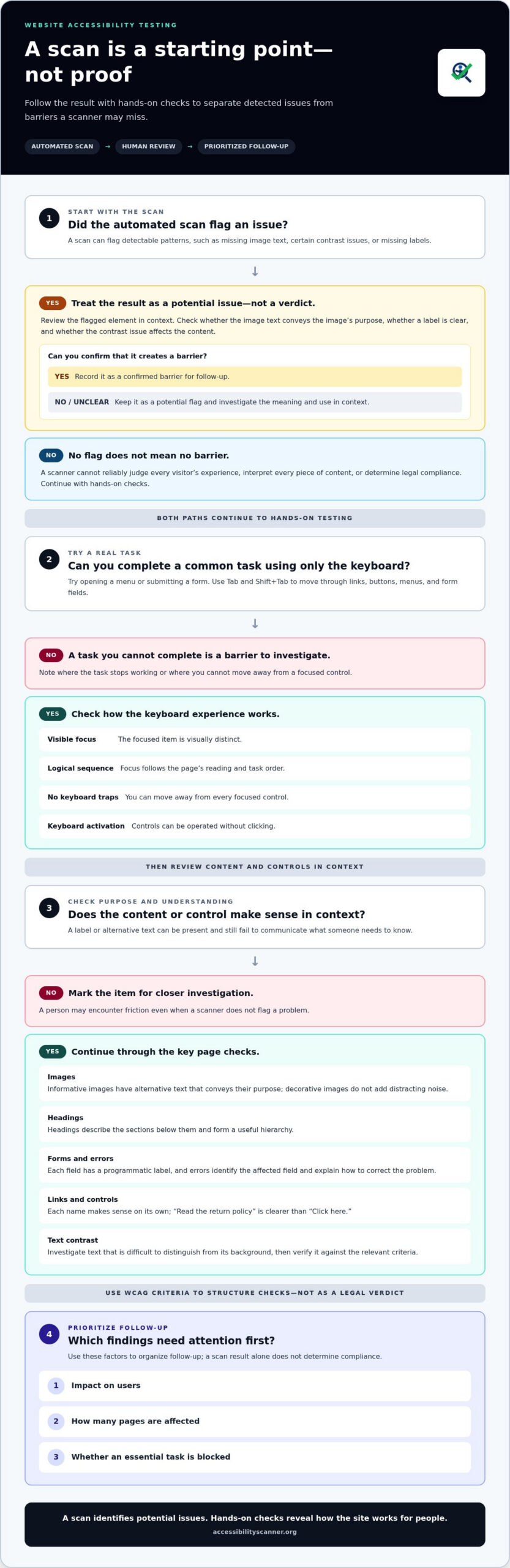
How to Run a Repeatable ADA Website Compliance Test
A repeatable process turns scan results into a working record of accessibility issues. Select priority pages, scan them, test key tasks, document findings, assign ownership, and retest after changes. Keep the same sequence each time so you can compare results and catch recurring barriers.
Which pages should you test first?
Start where visitors need to get information or complete an essential task. Include shared page templates because a problem in one header, menu, or form pattern may affect multiple pages. Add new and frequently updated pages to the queue so changes don’t slip past your next review.
How should you document and retest findings?
A scan report is a useful starting point, but it shouldn’t become the only record. Capture enough detail for someone to understand and reproduce the issue, then track follow-up separately from scan results.
- Choose representative pages. Start with the homepage, shared navigation, contact form, and key conversion pages. Add pages used for account access, transactions, or essential information.
- Run an automated scan. Use an accessibility scanner as a first pass on each selected page. Save the results and note which page and elements were checked. Findings are leads to review, not a complete usability assessment.
- Test priority tasks by keyboard. Navigate through important tasks without a mouse. Check whether you can reach and operate controls, follow a logical focus order, and see which element is active.
- Record each issue clearly. Log the page and location, the observed barrier, steps to reproduce it, likely user impact, responsible owner, status, and retest date. Separate confirmed barriers from scan flags that still need contextual review.
- Retest after updates. Recheck the changed page and any related templates. Confirm that the original issue no longer appears and that the update hasn’t disrupted nearby controls or page behavior.
Make the record practical. Instead of logging “menu issue,” note the page, the steps that lead to the problem, what happens during keyboard navigation, and which task is blocked. Assign an owner and track the status outside the scanner report; a detected issue won’t resolve itself.
Use this ada website compliance test workflow whenever you add pages, update shared components, or revisit known findings. Start the automated part with a free website accessibility scan, then complete the keyboard checks and track follow-up in your issue log.
What to Do After Your ADA Website Compliance Test
Findings matter only if they lead to clear follow-up. Sort them by the barriers people face, verify automated flags in context, and assign next steps. A report is a starting point for decisions, not a remediation plan or proof of compliance.
How should you prioritize test findings?
Start with issues that stop someone from accessing essential information or completing an important task. A form that can’t be submitted by keyboard deserves attention before a minor issue on a rarely used page. Then look for repeated problems in shared templates. Addressing a pattern in the navigation or page layout may resolve a barrier across multiple pages.
- High priority: A barrier blocks access to essential content, account access, or a key transaction.
- Review across templates: The same issue appears on multiple pages or in a shared component.
- Contextual review: An automated flag needs a person to confirm whether it creates a real barrier.
- Track ownership: Assign someone to follow up, set a review date, and update the finding’s status.
Keep confirmed barriers separate from potential issues that need more investigation. That distinction helps your team act on clear problems without treating every scan flag as a verified defect. Record the user impact and affected pages, then revisit open items on their review dates so they don’t disappear into an old report.
How can an accessibility scan support ongoing checks?
Use an automated scan as an initial check of selected web pages, especially after content or page components change. Review the results, investigate flags that depend on context, and follow up with appropriate keyboard or assistive-technology checks. When a barrier is confirmed, route it to the person responsible for updates, then retest the affected page and any related templates.
AccessibilityScanner.org offers a free automated scan to help identify potential accessibility issues. Use its results to focus further review and support an ongoing testing routine.
Ready to check selected pages? Run a free automated accessibility scan, then use the findings to guide your next review and follow-up actions.
Turn Your Test Results Into Practical Next Steps
A useful ada website compliance test is a repeatable process, not a one-time score. Automated checks can quickly flag potential accessibility issues, while keyboard navigation and assistive-technology checks help reveal barriers that depend on context and real use.
Focus first on findings that block essential tasks, affect shared page templates, or appear across important pages. Separate confirmed barriers from scan flags that need review. Record who owns each follow-up and retest after changes so issues don’t vanish into an old report.
Start with a free automated scan to get an initial view of potential issues on selected pages. It’s a practical first step, not a certificate of accessibility or a substitute for further testing. Run a free automated accessibility scan, then use the findings to guide your next checks. A clear process helps you identify barriers, prioritize action, and make steady progress toward a more usable website.
Frequently Asked Questions
What is an ADA website compliance test?
An ADA website compliance test is a structured check for accessibility barriers that may make it harder for people with disabilities to use a website. It can use WCAG criteria as a technical reference and combine automated scanning with checks such as keyboard navigation. The results identify issues to investigate. They don’t determine legal compliance or certify that every visitor can use the site.
Can an automated ADA website test prove my site is compliant?
No. An automated test can flag detectable patterns, but it can’t prove full accessibility or establish ADA compliance. A scanner may identify a missing form label, for example, but it can’t reliably judge whether instructions make sense or whether someone can complete the form using a keyboard or screen reader. Treat scan results as a starting point, then review important tasks in context.
What should I check in an ADA website compliance test?
Check page structure, images, text contrast, links, navigation, forms, and interactive controls. Confirm that headings communicate the page hierarchy, informative images have useful alternative text, and form fields have clear labels and understandable error guidance. Also test whether visitors can reach and operate controls with a keyboard. An ada website compliance test should cover priority pages and tasks, not just one page or scan score.
How do I test website accessibility without a mouse?
Use your keyboard to complete a common task, such as opening the site menu, finding contact details, or submitting a form. Press Tab to move forward and Shift+Tab to move back. Check that focus stays visible, follows a logical order, and reaches each link and control. Try activating controls with the keyboard, and confirm you can move away from every focused item without getting trapped.
Can a free accessibility scanner find every website accessibility issue?
No. A free scanner can quickly flag potential issues that match patterns it can detect, but it won’t find every barrier. It may not assess whether alternative text accurately describes an image, whether reading order is logical, or whether a real task works with assistive technology. AccessibilityScanner.org provides a free automated web accessibility checker. Use its findings to guide further review, not as proof of complete accessibility.
How often should I test my website for accessibility?
There isn’t one testing schedule that fits every website. Check pages and shared components when they’re added or substantially changed, and include frequently updated content in your review routine. Revisit important pages periodically, especially those supporting account access, contact, or transactions. Retest after changes intended to address a barrier, and check related templates so an update hasn’t introduced a new problem elsewhere.
What should I do after an ADA website test finds issues?
First, review each finding to separate confirmed barriers from automated flags that need context. Prioritize issues that block essential information or tasks, then look for repeated problems in shared templates. Record the page, user impact, reproduction steps, owner, status, and review date. Follow up with appropriate keyboard or assistive-technology checks, address confirmed barriers through your normal update process, and retest affected pages afterward.
Frequently Asked Questions
What is an ADA website compliance test?
An ADA website compliance test is a structured check for accessibility barriers that may make it harder for people with disabilities to use a website. It can use WCAG criteria as a technical reference and combine automated scanning with checks such as keyboard navigation. The results identify issues to investigate. They don’t determine legal compliance or certify that every visitor can use the site.
Can an automated ADA website test prove my site is compliant?
No. An automated test can flag detectable patterns, but it can’t prove full accessibility or establish ADA compliance. A scanner may identify a missing form label, for example, but it can’t reliably judge whether instructions make sense or whether someone can complete the form using a keyboard or screen reader. Treat scan results as a starting point, then review important tasks in context.
What should I check in an ADA website compliance test?
Check page structure, images, text contrast, links, navigation, forms, and interactive controls. Confirm that headings communicate the page hierarchy, informative images have useful alternative text, and form fields have clear labels and understandable error guidance. Also test whether visitors can reach and operate controls with a keyboard. An ada website compliance test should cover priority pages and tasks, not just one page or scan score.
How do I test website accessibility without a mouse?
Use your keyboard to complete a common task, such as opening the site menu, finding contact details, or submitting a form. Press Tab to move forward and Shift+Tab to move back. Check that focus stays visible, follows a logical order, and reaches each link and control. Try activating controls with the keyboard, and confirm you can move away from every focused item without getting trapped.
Can a free accessibility scanner find every website accessibility issue?
No. A free scanner can quickly flag potential issues that match patterns it can detect, but it won’t find every barrier. It may not assess whether alternative text accurately describes an image, whether reading order is logical, or whether a real task works with assistive technology. AccessibilityScanner.org provides a free automated web accessibility checker. Use its findings to guide further review, not as proof of complete accessibility.
How often should I test my website for accessibility?
There isn’t one testing schedule that fits every website. Check pages and shared components when they’re added or substantially changed, and include frequently updated content in your review routine. Revisit important pages periodically, especially those supporting account access, contact, or transactions. Retest after changes intended to address a barrier, and check related templates so an update hasn’t introduced a new problem elsewhere.
What should I do after an ADA website test finds issues?
First, review each finding to separate confirmed barriers from automated flags that need context. Prioritize issues that block essential information or tasks, then look for repeated problems in shared templates. Record the page, user impact, reproduction steps, owner, status, and review date. Follow up with appropriate keyboard or assistive-technology checks, address confirmed barriers through your normal update process, and retest affected pages afterward.
Related guides

ADA Guidelines for Websites: A Clear 2026 Overview
What if “ADA compliant” isn’t a single website checklist? That’s the question behind many searches for ada guidelines. The answer depends partly on…
Read: ADA Guidelines for Websites: A Clear 2026 Overview
ADA Title III Website Checker: How to Evaluate the Right Tool in 2026
Can an automated scan tell you whether your business website meets ADA Title III expectations? An ada title iii website checker can flag potential…
Read: ADA Title III Website Checker: How to Evaluate the Right Tool in 2026
ADA Website Compliance: A Practical Guide for 2026
What if your website passes an accessibility scan but still blocks someone from using it? That risk is central to American with Disabilities Act…
Read: ADA Website Compliance: A Practical Guide for 2026