WCAG Compliance Scanner: How to Choose the Right Tool
What if a clean scan gives you confidence while users still face barriers? A wcag compliance scanner can flag common issues, but an automated result…

What if a clean scan gives you confidence while users still face barriers? A wcag compliance scanner can flag common issues, but an automated result can’t confirm that your whole website is accessible. That distinction matters when you’re choosing a tool and deciding what to investigate first.
The right scanner depends on what it checks, how clearly it reports findings, and whether your team can act on the results. Automated checks are a practical starting point, not a substitute for human review. Before comparing tools, consider which pages and interactions matter most, who will review the findings, and how your team will track follow-up.
This guide compares scanner capabilities and explains what automated checks can and can’t tell you. You’ll learn what to look for, how to review and prioritize findings, and how to build a repeatable scan, review, and retest workflow. Whether you’re evaluating a free accessibility checker or a tool for a larger team, the goal is to help you choose a useful next step.
Key Takeaways
- Compare tools by scan scope, explanations, reporting, workflow fit, and access requirements, not feature lists alone.
- Check which WCAG version and success criteria each wcag compliance scanner evaluates before relying on its results.
- Use automated findings to identify issues for investigation. Context, interactions, and assistive technology use may require additional evaluation.
- Build a repeatable process: choose representative pages, scan, review findings, investigate, and retest.
- A free checker can be a practical first step for an independent website review, provided you understand its limits.
What a WCAG Compliance Scanner Can Tell You About a Website
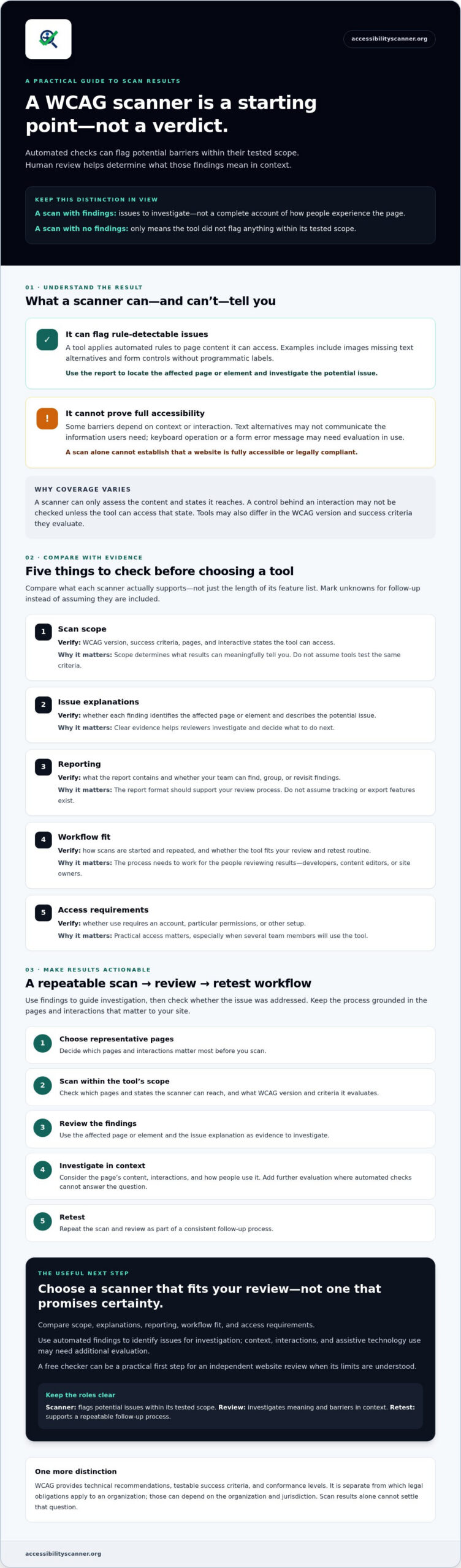
A wcag compliance scanner is an automated tool that checks web pages for accessibility issues its rules can detect. It may flag potential barriers such as images with missing text alternatives or form controls without programmatic labels. These results give your team issues to investigate, not a complete verdict on how people experience the page.
The scanner’s reference point is the Web Content Accessibility Guidelines (WCAG), a set of technical recommendations for making web content more accessible. WCAG defines testable success criteria and conformance levels. It is separate from the question of which legal obligations apply to a particular organization. Those obligations can depend on the organization and jurisdiction, so scan results alone can’t settle that question.
What does a WCAG scanner actually check?
A scanner applies automated rules to the page content it can access. Depending on the tool and its rules, it may identify an image with no text alternative or a form field with no programmatic label. Check the affected page and element in the report, then assess whether the issue creates a barrier in context. A scanner can only assess content and states it reaches. For example, a control behind an interaction may not be checked unless the tool can access that state.
Don’t assume two tools check the same things just because both mention WCAG. Before comparing results, verify the WCAG version and success criteria each tool supports, as well as which pages and states it can scan. Treat coverage as tool-specific, not as a guarantee of complete testing.
What does a scan result not prove?
A scan can’t establish that a website is fully accessible or legally compliant. Some barriers depend on context. An image may have text, for example, but that text may not communicate the information users need. Other issues emerge through interaction, such as whether someone can operate a menu using a keyboard or understand an error message while completing a form.
An automated scan detects potential issues; it doesn’t replace a full accessibility evaluation. A result with no detected issues means only that the tool didn’t flag anything within its tested scope. It isn’t proof that people with disabilities can use every page and feature. Review results in context and decide what additional evaluation the site’s content and interactions need.
Use a scan to guide investigation, not as a finish line. This keeps useful findings in view without turning an automated result into unsupported confidence.
How to Compare WCAG Compliance Scanner Features
Choose by evidence, not by the length of a feature list. A wcag compliance scanner that suits a developer checking a page may not fit a team reviewing a large site or coordinating recurring checks. Start by identifying who will use the tool, which pages and interactions matter, and how findings will fit into your existing testing process.
Which scanner criteria matter most?
Use the same questions for every candidate. Check the product documentation and mark unknown features for follow-up rather than assuming they’re included. The W3C guidance on selecting web accessibility evaluation tools also offers a framework for weighing tool features and scope.
| Comparison area | What to verify | Why it matters |
|---|---|---|
| Scan scope | Which WCAG version and success criteria does it check? Which pages and interactive states can it access? | Scope determines what the results can meaningfully tell you. Don’t assume two tools test the same criteria. |
| Issue explanations | Does each finding identify the affected page or element and describe the potential issue? | Clear evidence helps a reviewer investigate and decide what to do next. |
| Reporting | What does the report contain? Can your team find, group, or revisit findings? | Confirm the format supports your review process. Don’t assume tracking or export features exist. |
| Workflow fit | How are scans started and repeated? Can the tool fit your current review and retest routine? | A useful tool needs to work for the people reviewing results, whether they’re developers, content editors, or site owners. |
| Access requirements | Does use require an account, particular permissions, or other setup? | Check practical access before selecting a tool, especially if several team members will use it. |
How should teams compare scanner results?
Run comparable checks on the same representative pages, then compare issue descriptions and available evidence. Look for findings that identify a specific page or element and explain what needs investigation. If a tool maps findings to WCAG criteria, verify those mappings in its documentation. Confirm the stated WCAG version and criteria directly rather than inferring coverage from a score or product label. If you’re unsure what the different WCAG versions, conformance levels, or success criteria mean in practice, understanding the WCAG guidelines in plain English can help you evaluate scanner coverage more accurately.
Useful comparison starts with scope and evidence, not a score. An overall rating can simplify a report, but it may hide differences in what tools checked or how clearly they support follow-up. Record confirmed capabilities separately from questions you still need answered. For an initial page-level check, try the free automated accessibility scanner and review its findings in the context of your site.
Automated WCAG Scanners vs. Manual Accessibility Evaluation
A scanner is useful, but it isn’t a complete accessibility audit. Automated checks, keyboard testing, and assistive technology evaluation can reveal different things. Relying on only one method leaves gaps because some barriers depend on how a person moves through and understands a page.
Where automated scanning is useful
A wcag compliance scanner can check pages for detectable patterns and bring potential issues to a reviewer’s attention. This makes it a practical first pass when a team needs to identify items for follow-up across its website. The result is triage information, not a pass-or-fail guarantee of accessibility.
Repeat scans can also support ongoing checks after a site change. For example, a team might scan relevant pages after updating a shared template or adding a feature, then review any findings. A scan may help surface possible regressions, but only within the content and conditions the tool checks. It won’t confirm that every change works for every user.
When human review adds important context
Human evaluation looks at how people use a page. A keyboard check can reveal whether someone can reach and operate controls in a sensible order. A reviewer can assess whether the reading order makes sense and whether an interaction, such as opening a menu or submitting a form, is understandable. Assistive technology can expose problems in how content or controls are communicated that automated rules may not identify.
These checks require judgment. A page may have a logical order in its code but still feel confusing to navigate. A control may respond to keyboard input but remain difficult to find or operate. Reviewing the experience helps determine whether a flagged issue creates a real barrier and may reveal friction that a scanner doesn’t report.
- Automated scanning: Finds detectable patterns and helps direct attention to potential issues.
- Keyboard checks: Test whether key content and controls can be reached and operated without a mouse.
- Assistive technology evaluation: Examines how content and interactions are conveyed through tools people use to access digital content.
Use these methods together, treating each as one source of evidence. AccessibilityScanner.org provides automated scanning, not manual audits or legal advice. Its scanner can help identify potential barriers, but it doesn’t replace follow-up evaluation or establish full accessibility or legal compliance.
A Practical Workflow for Using WCAG Scanner Findings
A scan is useful only if someone reviews the findings and tracks what happens next. Use a consistent process so potential barriers don’t disappear into a report or get mistaken for confirmed problems.
- Select representative pages. Include different page types, such as a landing page, an article, and a form. List important interactive states too, such as an open menu, expanded panel, or form error. Choose pages that reflect how people use the site, not just the easiest ones to scan.
- Run the scan and record its scope. Note which pages were checked and the tool’s stated coverage. Keep that context with the results so the team knows what the scan did and didn’t assess.
- Review each finding on the page. Confirm the affected element and consider whether it creates a barrier in context. Treat the scanner’s description as a starting point for investigation, not a decision by itself.
- Assign a next step and owner. Record the evidence, affected page, responsible person, and status. If a finding needs more investigation, specify what to check. Prioritize by potential user impact, how widely the issue appears, and whether it affects an important task. Don’t rely on a severity label alone.
- Retest and update the record. After a change is made, rerun relevant scans on affected pages and compare the findings. Follow up with keyboard and assistive technology evaluation where appropriate. Mark whether an issue is resolved, still present, or needs further review.
How should a team triage scan results?
Start with the user’s task. A potential barrier on an important form may deserve attention before an issue on a rarely visited page, but verify the details instead of assuming. Check the finding in context, note whether it appears on other pages, then assign clear responsibility for investigation or remediation. Keep unresolved items visible with a review status.
How do teams check whether changes helped?
Retest the pages and interactions affected by a change, not just the page that initially raised the issue. Compare the new scan output with your record, then use keyboard and assistive technology checks to evaluate aspects automation can’t confirm. A finding that no longer appears is useful evidence, but it doesn’t establish that the whole site is accessible.
You can begin this workflow with an automated check of your web pages. Run a free automated scan to identify potential issues for review, then record what you investigate and what still needs attention.
Choose a WCAG Compliance Scanner That Fits Your Next Step
The right tool helps you take a useful next step without making a broader promise than its checks support. Before choosing a wcag compliance scanner, check five things:
- Intended use: Is it for an initial page check, recurring team reviews, or another specific purpose?
- Scan scope: Which pages, interactions, WCAG version, and success criteria does it check? Confirm details in the product documentation.
- Result clarity: Can you identify the affected page and understand what needs investigation?
- Workflow fit: Can your team review findings, assign follow-up, and retest through its existing process?
- Limitations: Are you clear about what the tool can’t assess or establish?
Is a free automated WCAG scanner the right starting point?
It can be. A free automated checker is a practical first step for an independent website review or for a team that wants to surface potential issues before planning further evaluation. AccessibilityScanner.org offers a free automated web accessibility scanner that checks pages for accessibility issues related to ADA and WCAG.
Set clear expectations. The scanner provides automated checks, not a manual audit, code changes, or legal advice. Review findings in context and arrange any additional evaluation or changes through your own process. A scan can help identify issues to investigate, but it can’t confirm full accessibility or compliance, or guarantee protection from legal action.
What should you do after the first scan?
Start with the page and the task a person is trying to complete. Check whether each result reflects a barrier in that context, then decide what follow-up is appropriate. For example, review a finding on a sign-up form in relation to the steps someone needs to complete the form, rather than treating it as an isolated score.
Next, use your team’s process to assign follow-up and plan any needed checks or changes. Retest relevant pages after updates, and keep unresolved findings visible until they’ve been reviewed. This turns an initial scan into a repeatable evaluation step without overstating what automation can prove.
Start with one page, review the results, and use them to decide what to examine next. Scan a page with AccessibilityScanner.org.
Turn Your First Scan Into a Clear Next Step
Choose a wcag compliance scanner based on the pages it can check, the clarity of its findings, and how well it fits your team’s review process. Confirm its stated WCAG coverage instead of assuming every tool checks the same criteria.
Keep the limits in view. Automated results flag potential issues, but they don’t establish full accessibility or legal compliance. Review findings in context, consider how people use the page, and follow up with suitable evaluation. A repeatable scan, review, and retest process helps your team track what still needs attention.
AccessibilityScanner.org offers free automated web accessibility checking and automated issue detection for web pages. Use the results as a starting point for your own evaluation, not as a compliance guarantee. Run a free automated accessibility scan and take the next step with a clearer view of potential barriers.
Frequently Asked Questions
What does a WCAG compliance scanner check?
A WCAG compliance scanner automatically checks web pages for accessibility issues its rules can detect. Depending on the tool’s documented scope, findings may include missing text alternatives for images or form fields without programmatic labels. The results identify potential barriers for review. Check which WCAG version and success criteria the scanner covers, and which pages it can access, before treating its results as representative of your website.
Can an automated WCAG scanner guarantee compliance?
No. An automated scan can flag detectable issues, but it can’t establish that a website is fully accessible or legally compliant. Some barriers depend on context, interaction, and how people experience a page. A clean result only means the tool didn’t report issues within its tested scope. Review findings and plan appropriate follow-up checks rather than treating a scan as proof of compliance.
How do I choose a WCAG compliance scanner?
Choose a wcag compliance scanner by comparing its intended use, scan scope, result clarity, and fit with your team’s workflow. Verify the WCAG version and criteria it checks, which pages it can scan, and whether findings identify affected elements and explain potential issues. Also confirm reporting and access requirements in the product documentation. Don’t select a tool based on an overall score or feature claims alone.
Are free WCAG scanners accurate?
A free scanner can provide useful automated findings, but accuracy depends on the tool’s rules, coverage, and the page content it can access. Treat each result as a potential issue to investigate, not a confirmed barrier or a complete account of accessibility. Compare a scanner’s stated criteria with your needs, then review findings in context. Free or paid, no automated tool establishes complete accessibility by itself.
What accessibility issues can automated scanners miss?
Automated scanners can miss barriers that require context or human judgment. They may not determine whether an image’s text alternative conveys the right information, whether reading order makes sense, or whether a menu is easy to operate with a keyboard. Testing with assistive technology can reveal additional problems in how content and controls are experienced. Use scan results alongside suitable human evaluation, not as a replacement for it.
How often should I scan my website for WCAG issues?
There isn’t one schedule that fits every website. Build scans into your team’s review process and run relevant checks after changes that affect page content, templates, or interactions. Include representative page types and important interactive states in your evaluation plan. Record what was checked, review the findings, and retest affected pages after changes. Regular, repeatable checks help surface issues without implying that scanning alone covers every barrier.
Does a WCAG scanner fix the issues it finds?
No. A scanner detects potential accessibility issues; it doesn’t necessarily change website code or resolve findings. AccessibilityScanner.org provides a free automated accessibility checker for web pages, but does not provide code remediation or manual accessibility audits. Review each result, decide whether it reflects a barrier, and use your team’s process to plan any changes and follow-up evaluation. A scan is a starting point, not a repair service.
Frequently Asked Questions
What does a WCAG compliance scanner check?
A WCAG compliance scanner automatically checks web pages for accessibility issues its rules can detect. Depending on the tool’s documented scope, findings may include missing text alternatives for images or form fields without programmatic labels. The results identify potential barriers for review. Check which WCAG version and success criteria the scanner covers, and which pages it can access, before treating its results as representative of your website.
Can an automated WCAG scanner guarantee compliance?
No. An automated scan can flag detectable issues, but it can’t establish that a website is fully accessible or legally compliant. Some barriers depend on context, interaction, and how people experience a page. A clean result only means the tool didn’t report issues within its tested scope. Review findings and plan appropriate follow-up checks rather than treating a scan as proof of compliance.
How do I choose a WCAG compliance scanner?
Choose a wcag compliance scanner by comparing its intended use, scan scope, result clarity, and fit with your team’s workflow. Verify the WCAG version and criteria it checks, which pages it can scan, and whether findings identify affected elements and explain potential issues. Also confirm reporting and access requirements in the product documentation. Don’t select a tool based on an overall score or feature claims alone.
Are free WCAG scanners accurate?
A free scanner can provide useful automated findings, but accuracy depends on the tool’s rules, coverage, and the page content it can access. Treat each result as a potential issue to investigate, not a confirmed barrier or a complete account of accessibility. Compare a scanner’s stated criteria with your needs, then review findings in context. Free or paid, no automated tool establishes complete accessibility by itself.
What accessibility issues can automated scanners miss?
Automated scanners can miss barriers that require context or human judgment. They may not determine whether an image’s text alternative conveys the right information, whether reading order makes sense, or whether a menu is easy to operate with a keyboard. Testing with assistive technology can reveal additional problems in how content and controls are experienced. Use scan results alongside suitable human evaluation, not as a replacement for it.
How often should I scan my website for WCAG issues?
There isn’t one schedule that fits every website. Build scans into your team’s review process and run relevant checks after changes that affect page content, templates, or interactions. Include representative page types and important interactive states in your evaluation plan. Record what was checked, review the findings, and retest affected pages after changes. Regular, repeatable checks help surface issues without implying that scanning alone covers every barrier.
Does a WCAG scanner fix the issues it finds?
No. A scanner detects potential accessibility issues; it doesn’t necessarily change website code or resolve findings. AccessibilityScanner.org provides a free automated accessibility checker for web pages, but does not provide code remediation or manual accessibility audits. Review each result, decide whether it reflects a barrier, and use your team’s process to plan any changes and follow-up evaluation. A scan is a starting point, not a repair service.
Related guides

WCAG Guidelines in Plain English: Principles, Levels, and Practical Meaning
What if treating accessibility as a pass-or-fail checklist leaves the biggest barriers untouched? The wcag guidelines can feel like a maze of…
Read: WCAG Guidelines in Plain English: Principles, Levels, and Practical Meaning
Wix Website ADA Compliance Check: A Practical Guide for 2026
What if an accessibility scan looks clean but your Wix site still has barriers? Automated tools can flag common issues, but they can’t judge every…
Read: Wix Website ADA Compliance Check: A Practical Guide for 2026
Automated Accessibility Scanner: Build a Practical Compliance Monitoring Workflow
A clean scan doesn’t prove your website is accessible. An automated accessibility scanner can quickly flag detectable barriers, but a passing result…
Read: Automated Accessibility Scanner: Build a Practical Compliance Monitoring Workflow