Squarespace Accessibility Audit Tool: What to Check Before You Choose
What if a clean scan still leaves a visitor unable to use your Squarespace site? A squarespace accessibility audit tool can flag potential barriers,…

What if a clean scan still leaves a visitor unable to use your Squarespace site? A squarespace accessibility audit tool can flag potential barriers, but its results are not a complete accessibility verdict. Check whether the tool covers the pages you care about, then interpret its findings in context.
It is reasonable to want a quick, clear answer about whether your site is accessible. An automated scan is a useful first step, but it cannot establish that every visitor can navigate, understand, and use your content, including people using assistive technology. A scan with no findings does not mean there are no barriers.
This guide explains how to assess a Squarespace site, compare audit tools, and choose an appropriate first check. You will learn what to look for in page coverage and reporting, how to turn scan results into practical next steps, and why further testing matters. Start with a scan, investigate the issues it identifies, then check the experience beyond what automation can assess.
Key Takeaways
- Choose a squarespace accessibility audit tool based on the pages you need to check and how clearly it explains its findings.
- Use automated results to identify potential barriers, not as proof that a site is fully accessible or inaccessible.
- Compare tools by page coverage, explanations, repeatability, and the checks they actually claim to perform.
- Record page URLs and findings so you can investigate issues and compare results after changes.
- Use a free automated scan as a practical first check, then identify where further evaluation is needed.
Choosing a Squarespace Accessibility Audit Tool: Start With the Site and the Task
What do you need the tool to check: one landing page, a contact form, or several important pages? Begin with that task. An automated accessibility scan checks page content for patterns that may create barriers, then flags potential issues for investigation. It can be a useful first check on a Squarespace site, but it is not a full accessibility evaluation, remediation service, or legal opinion. For a plain-language overview, see What is web accessibility?
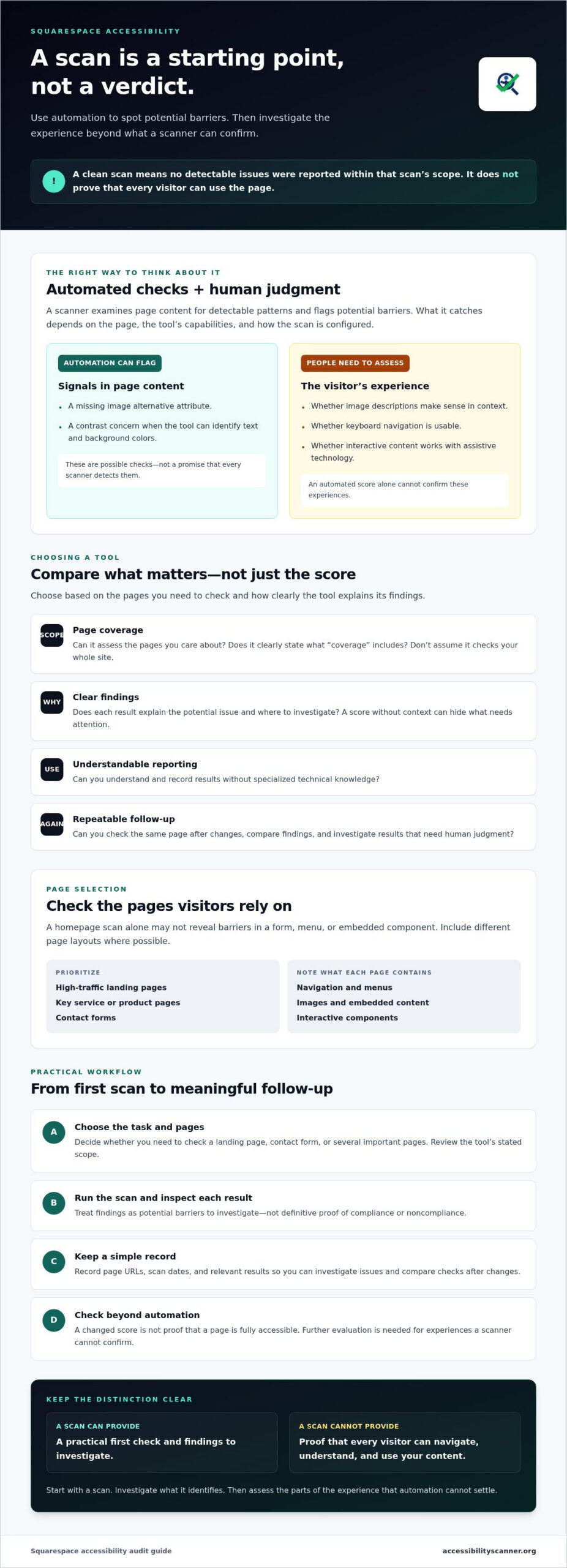
Choose a squarespace accessibility audit tool by its practical scope, not the size of its score or the confidence of its claims. Before you start, check whether it can assess the pages you care about, explain its findings, and support repeat checks. Treat an automated result as a prompt to investigate, not a verdict about your site.
What should a Squarespace accessibility audit tool do?
Look for findings that explain what may be wrong and where to investigate. A score without context can obscure the difference between a clear issue and a result that needs interpretation. Check whether the tool assesses one page at a time or offers broader coverage, and find out what “coverage” means. Do not assume a scanner checks your whole site unless it clearly says so.
Repeatability is useful, too. You should be able to check the same page again after changes and compare the findings. Keep a simple record of page URLs, scan dates, and relevant results. This creates a baseline for follow-up, but a changed score is not proof that the page is fully accessible.
Which Squarespace pages should you check first?
Start with pages visitors rely on to understand your offer or take action: high-traffic landing pages, key service or product pages, and contact forms. Include different page layouts where possible. A homepage scan alone may not reveal barriers in a form, menu, or embedded component.
As you select pages, note the elements each contains, such as navigation, menus, images, embedded content, and interactive components. A first scan can flag potential barriers on the pages assessed, but your selection does not establish full-site coverage.
Use this checklist to compare options:
- Page scope: Can it check the pages you need, and does it state what it covers?
- Clear findings: Does each result explain the potential issue and where to look?
- Usability: Can you understand and record results without specialized technical knowledge?
- Follow-up: Can you repeat checks after changes and investigate results that need human judgment?
A free automated web accessibility checker can be a practical starting point for a Squarespace page. Select the page, review the tool’s stated scope, and use its findings to decide what to investigate next.
What a Squarespace Accessibility Scan Can Find and What It Cannot Confirm
A scan report is evidence to investigate, not a verdict. Automated tools examine page content for detectable patterns and flag potential barriers. What they catch depends on the page, the tool’s capabilities, and how the scan is configured. A clean report means only that the scan did not report detectable issues within its scope. It cannot establish that every visitor can use the page.
Which accessibility barriers may an automated scanner flag?
Some checks can be automated when the relevant information is available in the page code. Other questions depend on context and require a person to assess the visitor’s experience. Use this distinction when reading scan results:
| Check type | What it may reveal | What it cannot establish |
|---|---|---|
| Machine-detectable signals | A missing image alternative attribute, or a contrast concern when the tool can identify the text and background colors. | Whether an image description conveys the right meaning, or whether every instance of contrast is assessed correctly. |
| Human judgment and testing | Whether image text alternatives make sense in context, whether keyboard navigation is usable, and whether interactive content works with assistive technology. | These experiences cannot be confirmed by relying on an automated score alone. |
These are examples of possible checks, not a promise that every scanner detects them. Before choosing a squarespace accessibility audit tool, review its stated capabilities and the pages it can assess. A result should point to a potential barrier for investigation, not serve as definitive proof of compliance or noncompliance.
Why do manual and assistive-technology checks still matter?
Context affects meaning. An image of a product may need a different alternative description from a decorative image beside the same product name. A scanner may identify missing alternative text, but a person must judge whether the description is useful. The W3C’s Web accessibility fundamentals explains how people with disabilities use the web and why different needs matter.
Complement scans with a keyboard review. Move through the page without a mouse and check whether you can reach and use menus, links, and form controls. Assistive-technology testing can reveal barriers that code-pattern checks miss. These checks provide additional evidence; they are not a legal opinion or a guarantee of accessibility.
Automated scanners can flag detectable issues, but they cannot certify full accessibility. AccessibilityScanner.org provides automated issue detection, not manual audits or remediation. To investigate potential barriers on a page, try its free automated accessibility scanner, then follow up on the results separately.
Compare Squarespace Accessibility Audit Tools by Scope, Clarity, and Follow-Up
The right tool for your Squarespace site depends on the task. A one-time check of a key page has different needs from recurring oversight of a site that changes often. Compare tools by what they assess, how they explain potential issues, whether you can repeat checks, and whether they distinguish automated scanning from a complete accessibility evaluation.
If a tool refers to standards, look for specifics rather than a broad compliance promise. The Web Content Accessibility Guidelines (WCAG) set out accessibility criteria, but a tool’s reference to WCAG alone does not show which checks it performs or what its results establish.
- Page coverage: Does the tool check a page you select, or explain how it covers multiple pages? Confirm the scope rather than assuming it scans an entire Squarespace site.
- Finding explanations: Does it identify the affected page or element and describe the potential issue?
- Repeatability: Can you check the same page again after a content or design change and compare results?
- Realistic claims: Does the tool describe its limits, or imply that an automated scan alone can establish full accessibility?
Does the tool explain findings well enough to act on?
A useful report gives you more than a score. Look for an issue description, the page or element involved, and enough context to guide your next investigation. For example, a result identifying an image element is more useful than a general rating, but you may still need to judge whether the image’s text alternative makes sense. If you cannot tell what a finding refers to, it is difficult to prioritize or verify it later.
Do you need a scanner, a monitoring platform, or expert review?
A standalone scanner may suit an initial check of a selected page. A broader platform may combine scanning with monitoring or professional services, so check which capabilities are included and whether they match your needs. If content changes often, consider whether recurring monitoring would help, but verify its page coverage and reporting before choosing it.
Automated results may leave important questions unresolved. In that case, consider a qualified manual review and assistive-technology testing as separate forms of evaluation. Do not assume a scanner provides these services unless they are explicitly included.
Use this decision rule: match the tool’s stated scope to your immediate task, then plan how to check what it does not cover. AccessibilityScanner.org offers a free automated web accessibility scanner for investigating potential issues on web pages. It is a first-check option, not a compliance guarantee or a substitute for further evaluation.
How to Run a Practical Accessibility Audit on a Squarespace Site
A useful first check is repeatable. Choose representative pages, scan within the tool’s stated limits, investigate the findings, and check the page again after changes. Keep notes throughout. A record helps you track what you checked without mistaking a sample of pages for a full-site evaluation.
Prepare and scan representative Squarespace pages
Start with pages visitors rely on to complete key tasks, such as a landing page, a service or product page, and a contact form. Consider the journey between them, too. Can someone reach the form through the navigation and understand how to submit it? Before using a squarespace accessibility audit tool, review its current instructions for page input, coverage, and available report details. Do not assume it scans the full site.
- Select pages and journeys. Include different layouts and interactive elements, such as menus, embedded content, and forms. A single page will not represent every part of the site.
- Record a baseline. Note each page URL, the scan date, and the findings. Include enough detail to locate the affected element later. Keep the notes together so you can compare follow-up checks.
- Run the scan as instructed. Submit pages only as the tool currently allows. If its scope or report options are unclear, verify them before relying on the results.
Review findings, make changes, and test again
Do not act on a flag without checking the element in context. Confirm which page and component it refers to, then decide whether it represents a real barrier or needs further review. Prioritize issues by their likely effect on visitors and the importance of the affected page. A potential barrier on a key form may deserve earlier attention than a less central issue, but every finding needs context.
- Assign follow-up. Share relevant findings with a suitably qualified site editor or developer if a design or code change is needed. An automated scanner identifies potential issues; it does not make changes for you.
- Check the change. Repeat the scan on the same page and record the new result beside your baseline. Then add keyboard checks and human evaluation. A changed or cleared finding does not confirm that every visitor can use the page.
Use this workflow as a practical starting point, not a compliance verdict. To scan a selected page for potential accessibility issues, run a free automated accessibility scan and use the results to guide your next investigation.
Choose a Squarespace Accessibility Audit Tool and Take the Next Step
Choose a tool that tells you what it checks, explains its findings clearly, and helps you decide what to investigate next. A score without page-level context is a weak basis for action. So is a tool that makes broad accessibility claims without explaining the limits of its scan.
For an initial check, AccessibilityScanner.org offers a free automated web accessibility scanner that detects potential issues on website pages. It can help you decide where to look more closely. It does not provide a manual audit, fix code, or offer legal advice, and its results are not a guarantee of ADA or WCAG compliance.
When is a free automated checker a sensible first step?
Use a squarespace accessibility audit tool when you want to check a selected page for potential issues and need a practical starting point. Confirm the scanner’s current instructions and scope before submitting a page. Treat its results as leads for investigation, not certification of the page or the entire Squarespace website. That distinction helps prevent a useful first check from creating false reassurance.
What should happen after the first scan?
Review each flagged item on the page. Decide whether it reflects a barrier, needs more context, or should be passed to someone qualified to address it. Automated results cannot answer every question about how people experience a site, so add human review, keyboard checks, or assistive-technology testing where needed. Keep a record of what you checked and what remains unresolved.
After changes are made, revisit the affected pages and check them again. A repeat scan can show whether previously flagged patterns still appear, but it does not replace testing the actual experience. Recheck when important content or page components change, too. Accessibility checks work best as an ongoing process, not a one-time score.
Keep the next step simple:
- Pick a page: Start with a page visitors need to use.
- Run an automated scan: Follow the tool’s instructions and note its stated coverage.
- Investigate: Review findings in context and decide what follow-up each needs.
- Recheck: Track changes and test the affected page again.
Ready to begin? Use AccessibilityScanner.org’s free automated scanner to check a Squarespace page for potential accessibility issues, then investigate what the results show. Start with evidence, be clear about what it can establish, and follow up on what it cannot.
Turn Your First Scan Into a Clear Next Step
The right squarespace accessibility audit tool starts with a clear scope: check the pages that matter, look for findings you can investigate, and understand what the scan cannot confirm. Automated results can point to potential barriers, but they do not establish that every visitor can use your site. Keep a record, follow up on important findings, and add human and assistive-technology checks where questions remain.
AccessibilityScanner.org offers free automated web accessibility scanning with issue detection for website pages. Use it as a practical first check, not a compliance guarantee or a substitute for further evaluation.
Scan a Squarespace page with the free accessibility checker and use the results to guide your next investigation. Each clear, thoughtful step can help you make your site easier for more visitors to use.
Frequently Asked Questions
Can I use an accessibility audit tool on a Squarespace website?
Yes. A web-based scanner can check a Squarespace page if it accepts the page URL and can access that page. Confirm the tool’s current input requirements and scan scope first. A scan of one page may not cover other pages, templates, or interactions. Treat results as an initial check, then review important user journeys, such as navigating menus and submitting a form, with keyboard and human testing.
Does a Squarespace accessibility scan prove my website is ADA compliant?
No. An automated scan cannot prove ADA compliance or provide legal protection. It can flag potential barriers within its detection scope, but it cannot confirm every part of a person’s experience or resolve legal questions. Use its results to guide further investigation. If you need legal advice or a comprehensive accessibility evaluation, consult appropriately qualified professionals. A clear scan report is useful evidence to review, not a compliance verdict.
What can an automated accessibility audit tool detect on a Squarespace site?
Depending on the scanner and page, automated checks may flag detectable issues such as missing image alternatives or certain color-contrast concerns. Capabilities vary, so review the tool’s documented checks rather than assuming it covers every barrier. Human judgment may be needed to decide whether an image description makes sense in context or whether an interaction works for visitors. A clean report does not establish that the site is fully accessible.
How do I scan a Squarespace website for accessibility issues?
Choose important pages first, such as the homepage, a key service or product page, and a contact form. Check that your selected scanner accepts each page’s URL, then follow its current instructions. Record the URLs and findings, and investigate each flagged item in context. Route confirmed design or code changes to someone qualified to address them. Recheck affected pages afterward, and supplement automated scans with keyboard and human testing.
Is a free Squarespace accessibility audit tool enough for a complete audit?
No. A free Squarespace accessibility audit tool can be a useful first step, but an automated checker is not necessarily a complete audit. It only checks issues within its capabilities and the pages it can access. It does not replace human evaluation, assistive-technology testing, remediation, or legal advice. Use scan results to identify potential barriers and plan further review, especially for important pages or interactions that automation cannot fully assess.
What should I do when an accessibility scanner finds an issue on my Squarespace site?
Open the reported page and inspect the flagged element in context. Confirm what the tool identified, then decide who is qualified to review or make any needed design or code change. Afterward, check the page again and assess the user experience with appropriate human testing. Keep a record of the finding and follow-up. A scanner can identify potential issues, but it does not fix them or confirm that a change resolved every barrier.
Can an accessibility scanner check every page and interaction on my Squarespace site?
Do not assume it can. Coverage depends on the scanner’s capabilities, access, and configuration. A scan of one page does not show that every page, menu, form, embedded item, or interactive flow was checked. Review the tool’s stated scope, then test representative user journeys, such as opening navigation and completing a form. Add keyboard and human checks for interactions that automated scanning cannot reliably evaluate.
Frequently Asked Questions
Can I use an accessibility audit tool on a Squarespace website?
Yes. A web-based scanner can check a Squarespace page if it accepts the page URL and can access that page. Confirm the tool’s current input requirements and scan scope first. A scan of one page may not cover other pages, templates, or interactions. Treat results as an initial check, then review important user journeys, such as navigating menus and submitting a form, with keyboard and human testing.
Does a Squarespace accessibility scan prove my website is ADA compliant?
No. An automated scan cannot prove ADA compliance or provide legal protection. It can flag potential barriers within its detection scope, but it cannot confirm every part of a person’s experience or resolve legal questions. Use its results to guide further investigation. If you need legal advice or a comprehensive accessibility evaluation, consult appropriately qualified professionals. A clear scan report is useful evidence to review, not a compliance verdict.
What can an automated accessibility audit tool detect on a Squarespace site?
Depending on the scanner and page, automated checks may flag detectable issues such as missing image alternatives or certain color-contrast concerns. Capabilities vary, so review the tool’s documented checks rather than assuming it covers every barrier. Human judgment may be needed to decide whether an image description makes sense in context or whether an interaction works for visitors. A clean report does not establish that the site is fully accessible.
How do I scan a Squarespace website for accessibility issues?
Choose important pages first, such as the homepage, a key service or product page, and a contact form. Check that your selected scanner accepts each page’s URL, then follow its current instructions. Record the URLs and findings, and investigate each flagged item in context. Route confirmed design or code changes to someone qualified to address them. Recheck affected pages afterward, and supplement automated scans with keyboard and human testing.
Is a free Squarespace accessibility audit tool enough for a complete audit?
No. A free Squarespace accessibility audit tool can be a useful first step, but an automated checker is not necessarily a complete audit. It only checks issues within its capabilities and the pages it can access. It does not replace human evaluation, assistive-technology testing, remediation, or legal advice. Use scan results to identify potential barriers and plan further review, especially for important pages or interactions that automation cannot fully assess.
What should I do when an accessibility scanner finds an issue on my Squarespace site?
Open the reported page and inspect the flagged element in context. Confirm what the tool identified, then decide who is qualified to review or make any needed design or code change. Afterward, check the page again and assess the user experience with appropriate human testing. Keep a record of the finding and follow-up. A scanner can identify potential issues, but it does not fix them or confirm that a change resolved every barrier.
Can an accessibility scanner check every page and interaction on my Squarespace site?
Do not assume it can. Coverage depends on the scanner’s capabilities, access, and configuration. A scan of one page does not show that every page, menu, form, embedded item, or interactive flow was checked. Review the tool’s stated scope, then test representative user journeys, such as opening navigation and completing a form. Add keyboard and human checks for interactions that automated scanning cannot reliably evaluate.
Related guides

WCAG Guidelines in Plain English: Principles, Levels, and Practical Meaning
What if treating accessibility as a pass-or-fail checklist leaves the biggest barriers untouched? The wcag guidelines can feel like a maze of…
Read: WCAG Guidelines in Plain English: Principles, Levels, and Practical Meaning
Wix Website ADA Compliance Check: A Practical Guide for 2026
What if an accessibility scan looks clean but your Wix site still has barriers? Automated tools can flag common issues, but they can’t judge every…
Read: Wix Website ADA Compliance Check: A Practical Guide for 2026
WCAG Compliance Scanner: How to Choose the Right Tool
What if a clean scan gives you confidence while users still face barriers? A wcag compliance scanner can flag common issues, but an automated result…
Read: WCAG Compliance Scanner: How to Choose the Right Tool