How to Identify WCAG Compliance Gaps on Your Website
What if an accessibility scan finds issues but misses barriers that matter to users? To identify wcag compliance gaps, treat automated results as…

What if an accessibility scan finds issues but misses barriers that matter to users? To identify wcag compliance gaps, treat automated results as leads, not a verdict. A scanner can flag potential problems, but it can’t confirm complete WCAG conformance or detect every barrier.
It’s understandable to feel unsure where to start. Which pages and user journeys should you review? Are scan results accurate? And how do you turn technical findings into clear next steps? A clean scan alone won’t answer those questions.
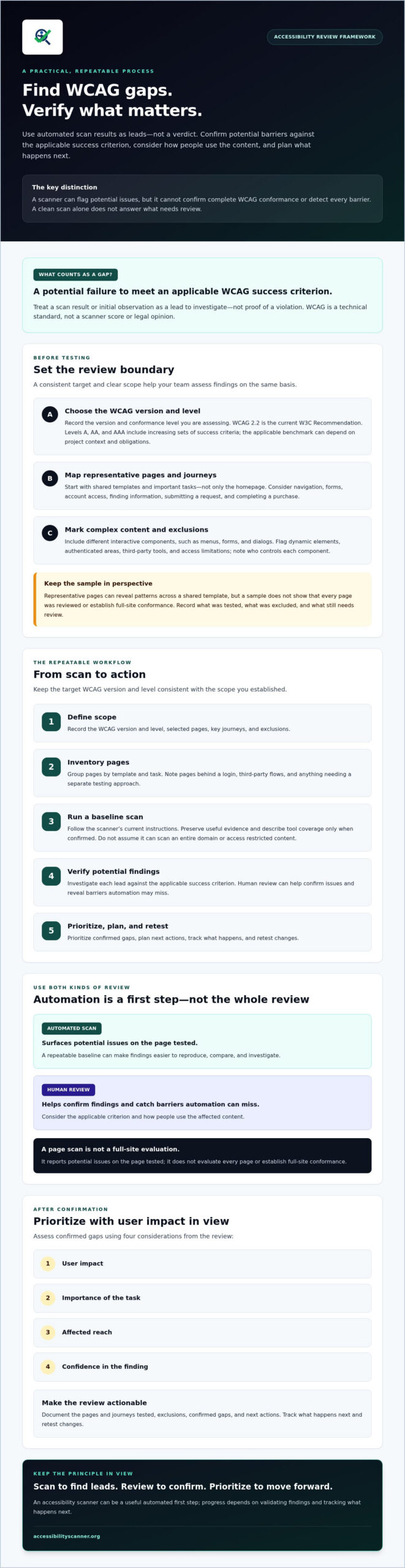
This guide provides a repeatable way to define your review scope, find potential barriers, verify scanner results, and prioritize confirmed gaps. You’ll learn what automation can surface, what needs human review, and how to document issues so your team can act on them. The process moves from mapping important pages and journeys to checking results, assessing impact, and planning next steps. An automated accessibility checker can be a useful first step, but progress depends on validating findings and tracking what happens next.
Key Takeaways
- Define a WCAG gap by checking a potential barrier against an applicable success criterion, not by relying on a scanner score or legal conclusion.
- To identify wcag compliance gaps systematically, map representative pages, shared templates, and key interactive components before scanning.
- Treat automated findings as leads to investigate. Human review can help confirm issues and reveal barriers a scanner may miss.
- Prioritize confirmed gaps by user impact, task importance, affected reach, and confidence in the finding.
- Use an accessibility scanner as an automated first step, then validate findings, plan next actions, and retest changes.
What Counts as a WCAG Compliance Gap, and What Should You Check?
A WCAG compliance gap is a potential failure to meet an applicable WCAG success criterion. The word potential matters: a scanner result or initial observation is a lead to investigate, not proof that a criterion has been violated. Confirm the issue against the relevant criterion and consider how people use the affected content.
WCAG is a technical standard, not a scanner score or legal opinion. Laws and policies may reference particular versions or conformance levels, so a test result alone can’t establish legal compliance. The Web Content Accessibility Guidelines provide background on the standard and its versions. Set the boundaries of your review before interpreting findings.
Choose the WCAG version and conformance level before testing
Record the version and level you’re assessing. WCAG 2.2 is the current W3C Recommendation, but a project’s applicable benchmark can depend on its context and obligations. Levels A, AA, and AAA include increasing sets of success criteria. They aren’t interchangeable targets, and requirements can vary by project. For a plain-English explanation of how the principles and levels work, see this plain-English WCAG guidelines guide.
Write down your target and any policy or rule that informs it. This gives your team a consistent basis for assessing potential gaps. Without a defined target, people may compare the same finding against different criteria and reach conflicting conclusions.
Map the pages and tasks that matter most
Don’t choose pages at random. Start with shared templates and the tasks visitors need to complete. Include navigation, forms, account access, and important journeys such as finding information, submitting a request, or completing a purchase. Include different interactive components as well. A page with a complex menu or form can expose barriers that a simple content page won’t.
Flag content that may need separate attention, including dynamic elements, authenticated areas, and third-party tools. A booking widget or embedded payment flow may behave differently from the surrounding site. Note what’s in scope and who controls each component.
A representative sample can reveal patterns, especially issues repeated across a shared template. But it doesn’t establish that every page has been reviewed or that the whole site conforms. To identify wcag compliance gaps responsibly, document which pages and journeys you tested, what you excluded, and what still needs review. This creates a clear boundary for the testing that follows.
How to Identify WCAG Compliance Gaps with a Repeatable Baseline Scan
A baseline scan gives your team a consistent starting point. It won’t tell you everything about accessibility, but a documented process makes potential issues easier to reproduce, compare, and investigate. Keep the target WCAG version and conformance level consistent with the scope you established.
A page scan reports potential issues on the page tested. It does not evaluate every page or establish full-site conformance. Set expectations before sharing results. The W3C’s Web Accessibility Initiative (WAI) offers official accessibility guidelines and educational resources to support your review.
Prepare a representative set of pages
Choose pages that reflect different templates and user tasks, not just the homepage. Include examples with forms, menus, dialogs, media, and important actions such as signing in or submitting information. If several pages use the same template, test representative examples and note that other pages using it may share similar issues.
List excluded pages and access limitations. For example, a page behind a login or a third-party flow may require a separate testing approach. This record keeps the review boundary clear and prevents a small sample from being mistaken for full-site coverage.
Run the baseline and preserve useful evidence
Follow the scanner’s current instructions. Describe its input options, standards, coverage, and report fields only when you’ve confirmed them in the tool. Don’t assume it can scan an entire domain or access restricted content. The free automated web accessibility scanner can be one starting point for identifying potential issues on pages.
Use this repeatable workflow:
- 1. Define scope. Record the target WCAG version and level, selected pages, key journeys, and exclusions.
- 2. Inventory pages. Group URLs by template and flag distinctive interactions or access requirements.
- 3. Scan selected pages. Run the automated check according to the tool’s current instructions.
- 4. Record findings. For each result, capture the page, scan date, tool used, reported criterion, and affected element when available.
- 5. Validate. Reproduce the reported behavior and investigate whether it represents a failure against the applicable criterion.
Make each record useful to the next person. Include enough context to locate the element and understand what happened, such as the affected form field or menu control. Keep the scanner’s wording separate from your team’s assessment, and mark findings that still need confirmation. This helps you identify wcag compliance gaps without treating automated output as a final conformance judgment.
How to Verify WCAG Scanner Findings and Catch What Automation Misses
A scanner can flag a possible barrier, but the result needs context. Automated checks can detect certain patterns, while other questions depend on how an element behaves and whether a person can complete a task. Treat each result as a lead. Confirm what happens on the page before classifying it as a WCAG failure.
Testing scope matters, too. For example, the requirements that apply to federal agencies are addressed in Section 508 laws and policies. Assess evidence against the standard and level selected for your review, rather than assuming one scanner result answers every compliance question.
Separate confirmed failures from findings needing investigation
Reproduce the finding on the same page and, where relevant, in the same state. A reported contrast issue might refer to text that appears only after opening a dialog. A flagged control may have changed since the scan. Check the affected element, surrounding content, and user interaction before deciding what the result means.
Compare what you observe with the relevant success criterion and record your reasoning. Keep these three statuses distinct in your log:
- Confirmed: Evidence supports a failure against the applicable criterion.
- Needs investigation: You can’t yet reproduce or confidently assess the issue.
- Not confirmed: The evidence doesn’t support the reported failure in the tested context.
Don’t erase an unconfirmed result without a note. Record what you tested and why you changed its status. This preserves an audit trail and helps teammates avoid repeating the same investigation.
Identify barriers that automated checks may not reveal
Automation can’t determine every aspect of a real interaction. Human review can expose barriers in keyboard operation, screen-reader output, focus behavior, and task completion. Check whether someone can move through a menu, reach and use its controls, understand where focus moves, and complete a form without a mouse.
Review labels and instructions with assistive technology. Submit a form incorrectly and check whether its error message is announced, understandable, and connected to the field that needs attention. A control may look correctly labeled in code yet make little sense in the context of the task. User testing and qualified expert evaluation can reveal these context-dependent problems.
When comparing accessibility scanners, check what each tool tests, what its results include, and what requires manual review. For a closer look at what to compare, see this guide on how to evaluate an automated WCAG audit tool. Then combine automated results with appropriate human evaluation. This gives your team stronger evidence to identify wcag compliance gaps while keeping scanner output separate from confirmed findings.
How to Prioritize and Document Confirmed WCAG Compliance Gaps
A confirmed issue still needs a clear next step. Prioritize it by asking four questions: How much does it affect users? Does it block an important task? How many pages or journeys share the affected component? How strong is the evidence? These factors help your team decide what to address first without relying on an invented risk score or a deadline that may not fit your situation.
Rank issues by user impact and task disruption
Start with barriers that prevent people from completing essential tasks, such as submitting a form or accessing an account. Then consider how widely the issue reaches. A keyboard barrier in a shared navigation template may affect several journeys, while a presentation issue on one secondary page may have a narrower impact. Neither should be dismissed automatically. Record why one issue takes priority so the decision stays clear across product, design, and development teams.
Build an issue register the team can maintain
Keep one record for each confirmed gap. Include enough detail for someone else to understand the problem, assign ownership, and verify the outcome. For example, a form issue should identify the affected page and field, describe the observed barrier, and connect it to the applicable success criterion.
- Criterion and page: Record the applicable WCAG success criterion and affected URL or template.
- Evidence: Note what happened, how it was tested, and which user task or interaction was affected.
- Owner and status: Assign a responsible team member and distinguish discovery, investigation, remediation, and retesting.
- Retest result: Record whether the issue was resolved, remains, or needs more investigation, including any remaining barriers.
After a change, retest the affected page and related templates or journeys that use the same component. A fix on one page doesn’t automatically confirm that every instance works. Preserve the new evidence and update the status. If an issue remains, document what still blocks users and return it to the action queue.
This register turns findings into a practical work plan and makes it easier to identify wcag compliance gaps that need attention across shared components. For a separate explanation of the ADA-focused checker context, see the free ADA compliance checker overview.
As you refresh your baseline, use the free accessibility scanner to surface potential issues for your team to investigate. Treat its automated results as one input to the register, not as confirmation that every gap has been found or resolved.
Use an Accessibility Scanner as the First Step in Your WCAG Gap Review
A scanner can help your team surface potential barriers, but it’s only one part of a WCAG review. Use it to direct attention, then verify what the findings mean and decide what to do next. The tool detects potential issues; it doesn’t fix them, confirm complete WCAG conformance, or provide legal advice.
Keep the review sequence clear:
- Scope: Set the WCAG target, pages, and user journeys you intend to review.
- Scan: Check selected pages and record the page and scan date with each result.
- Validate: Investigate each finding against the relevant criterion and test interactions that automation may not assess.
- Prioritize: Rank confirmed barriers by user impact, task importance, reach, and confidence in the evidence.
- Retest: After changes, check affected pages again and record any remaining barriers.
This sequence helps you identify wcag compliance gaps without treating a scan as a complete evaluation. An automated result is a starting point, not a compliance guarantee.
When an automated scanner is a useful next step
Use a scan when you need an initial view of potential issues on selected web pages. Keep its scope visible: note which pages were checked, which were excluded, and when the scan took place. That context helps the team interpret results later and plan what to examine next.
To begin, scan a webpage for potential accessibility issues with the free automated accessibility scanner. Review the results as leads for investigation, not as a complete audit.
What to do when scan results are incomplete or unclear
Don’t dismiss a result just because you can’t reproduce it immediately. Check the page state and affected element, then record what you tested and what remains uncertain. A finding that appears resolved in one interaction may still affect another page or user journey.
Use this decision checklist:
- Is the finding unclear? Investigate it and document the evidence before changing its status.
- Does the journey involve complex interactions? Seek qualified accessibility evaluation, especially when the barrier could block an important task.
- Do you need a legal interpretation? Consult qualified counsel. The scanner doesn’t provide legal advice.
- Did your team make changes? Retest affected pages and update the issue record with the outcome.
Automation can make the first pass more manageable. Human evaluation and careful follow-through are still needed to assess barriers the scanner may not detect and turn potential findings into a defensible action plan.
Turn Your WCAG Review into a Clear Next Step
A useful review starts with a defined target and a representative set of pages and journeys. Scans can surface potential barriers, but each result needs validation against the relevant WCAG criterion. Then prioritize confirmed issues by user impact, task importance, and how widely they affect the site. Document ownership and retest after changes so progress stays visible.
That’s a practical way to identify wcag compliance gaps without mistaking automated results for a complete evaluation. The free automated web accessibility scanner can help detect potential issues on a webpage. It doesn’t fix issues, provide legal advice, or guarantee WCAG conformance, so use its results as a starting point for investigation.
Scan a webpage for potential accessibility issues with the free automated checker, then review the findings and decide what needs further evaluation. Each verified barrier gives your team a clearer next action. Start with one page, build a reliable process, and keep moving toward a more accessible experience.
Frequently Asked Questions
How do I identify WCAG compliance gaps on my website?
To identify WCAG compliance gaps, first choose the applicable WCAG version and conformance level, then map the pages and user journeys to review. Scan representative pages with an automated accessibility checker to surface potential issues. Verify each result against the relevant success criterion and test interactions that automation may not assess, such as keyboard navigation and form completion. Record evidence, status, and affected pages so your team can prioritize and track follow-up.
Can an automated scanner find every WCAG issue?
No. Automated scanners can detect certain patterns, but they can’t identify every accessibility barrier or judge every interaction in context. A scan may flag a potential issue that needs confirmation, while problems with keyboard operation, screen-reader output, focus order, or task completion may require human evaluation. Use scan results as leads, then test important user journeys and seek qualified accessibility evaluation when complex or high-impact barriers need closer review.
What should I check first when looking for WCAG gaps?
Start by defining the WCAG version and conformance level you’re reviewing against. Then map important templates and tasks instead of checking only the homepage. Include navigation, forms, account access, dialogs, and journeys that let people complete essential actions. Note dynamic, authenticated, or third-party content that may need separate attention. Keep a record of excluded pages and access limits so your findings aren’t mistaken for coverage of the entire website.
How do I know whether a WCAG scanner finding is a real violation?
Reproduce the finding on the affected page and check that the element and page state match the scanner’s report. Compare what you observe with the applicable WCAG success criterion, then document your reasoning and evidence. Mark the result as confirmed, unresolved, or not confirmed rather than treating every alert as a failure. If you can’t determine whether the behavior violates a criterion, keep it open for further investigation or qualified evaluation.
How should I prioritize WCAG compliance gaps?
Prioritize confirmed barriers by their effect on users, the importance of the task they disrupt, how many pages or journeys share the issue, and how strong the evidence is. A barrier that prevents someone from submitting a form may need attention before a lower-impact presentation issue. Record why the team chose an order, assign an owner, and track retesting. Avoid relying on an arbitrary numerical score or a universal remediation deadline.
Does passing an automated WCAG scan mean my website is compliant?
No. A scan checks for potential issues within its automated capabilities and on the pages tested. A passing result doesn’t confirm complete WCAG conformance or legal compliance, and it doesn’t show that every page or user journey is accessible. Combine automated checks with appropriate human evaluation, including keyboard and assistive technology testing. AccessibilityScanner.org’s free automated checker detects potential issues, but it doesn’t provide remediation or legal advice.
Frequently Asked Questions
How do I identify WCAG compliance gaps on my website?
To identify WCAG compliance gaps, first choose the applicable WCAG version and conformance level, then map the pages and user journeys to review. Scan representative pages with an automated accessibility checker to surface potential issues. Verify each result against the relevant success criterion and test interactions that automation may not assess, such as keyboard navigation and form completion. Record evidence, status, and affected pages so your team can prioritize and track follow-up.
Can an automated scanner find every WCAG issue?
No. Automated scanners can detect certain patterns, but they can’t identify every accessibility barrier or judge every interaction in context. A scan may flag a potential issue that needs confirmation, while problems with keyboard operation, screen-reader output, focus order, or task completion may require human evaluation. Use scan results as leads, then test important user journeys and seek qualified accessibility evaluation when complex or high-impact barriers need closer review.
What should I check first when looking for WCAG gaps?
Start by defining the WCAG version and conformance level you’re reviewing against. Then map important templates and tasks instead of checking only the homepage. Include navigation, forms, account access, dialogs, and journeys that let people complete essential actions. Note dynamic, authenticated, or third-party content that may need separate attention. Keep a record of excluded pages and access limits so your findings aren’t mistaken for coverage of the entire website.
How do I know whether a WCAG scanner finding is a real violation?
Reproduce the finding on the affected page and check that the element and page state match the scanner’s report. Compare what you observe with the applicable WCAG success criterion, then document your reasoning and evidence. Mark the result as confirmed, unresolved, or not confirmed rather than treating every alert as a failure. If you can’t determine whether the behavior violates a criterion, keep it open for further investigation or qualified evaluation.
How should I prioritize WCAG compliance gaps?
Prioritize confirmed barriers by their effect on users, the importance of the task they disrupt, how many pages or journeys share the issue, and how strong the evidence is. A barrier that prevents someone from submitting a form may need attention before a lower-impact presentation issue. Record why the team chose an order, assign an owner, and track retesting. Avoid relying on an arbitrary numerical score or a universal remediation deadline.
Does passing an automated WCAG scan mean my website is compliant?
No. A scan checks for potential issues within its automated capabilities and on the pages tested. A passing result doesn’t confirm complete WCAG conformance or legal compliance, and it doesn’t show that every page or user journey is accessible. Combine automated checks with appropriate human evaluation, including keyboard and assistive technology testing. AccessibilityScanner.org’s free automated checker detects potential issues, but it doesn’t provide remediation or legal advice.
Related guides

ADA Guidelines for Websites: A Clear 2026 Overview
What if “ADA compliant” isn’t a single website checklist? That’s the question behind many searches for ada guidelines. The answer depends partly on…
Read: ADA Guidelines for Websites: A Clear 2026 Overview
ADA Website Compliance Test: A Practical Checklist for 2026
What should an ada website compliance test actually tell you? A clean scan can feel reassuring, but automated tools only flag issues they can detect….
Read: ADA Website Compliance Test: A Practical Checklist for 2026
ADA Title III Website Checker: How to Evaluate the Right Tool in 2026
Can an automated scan tell you whether your business website meets ADA Title III expectations? An ada title iii website checker can flag potential…
Read: ADA Title III Website Checker: How to Evaluate the Right Tool in 2026