How to Check Website Accessibility on WordPress: Complete 2026 Audit Guide
Can an internal plugin truly guarantee that your WordPress site complies with federal accessibility standards? In short, no. Most site owners don’t…

Can an internal plugin truly guarantee that your WordPress site complies with federal accessibility standards? In short, no. Most site owners don’t realize that dashboard tools only scan raw database entries. They remain completely blind to the dynamic scripts, page builders, and theme templates that break your live rendered code. Knowing how to check website accessibility on wordpress requires stepping outside your admin area and evaluating what assistive technologies actually encounter.
It’s completely normal to feel paralyzed by dense WCAG specifications, especially with ADA Title III litigation surging across digital platforms. You shouldn’t have to decipher hundreds of technical rules just to protect your organization from operational exposure. This guide delivers the exact operational workflow to scan, identify, and triage ADA and WCAG violations across your WordPress site. We will cover the mechanical difference between plugin checkers and automated external scanners, show you how to expose hidden theme barriers, and help you establish a recurring audit routine that keeps your pages compliant.
Key Takeaways
- WordPress themes, page builders, and third-party widgets frequently inject invalid code and severe accessibility barriers into public-facing pages.
- Mastering how to check website accessibility on wordpress requires evaluating the live rendered DOM with an external accessibility checker rather than relying on server-heavy dashboard plugins.
- A structured template audit protocol surfaces critical WCAG violations across high-traffic layouts without wasting time on redundant content pages.
- Triaging interactive roadblocks like unlabelled form fields, missing keyboard focus indicators, and broken buttons drastically limits legal exposure.
- Establishing a recurring automated scanning routine provides a continuous safety net against new regressions introduced by everyday content updates.
Why WordPress Websites Fail Accessibility Tests and Trigger Legal Risks
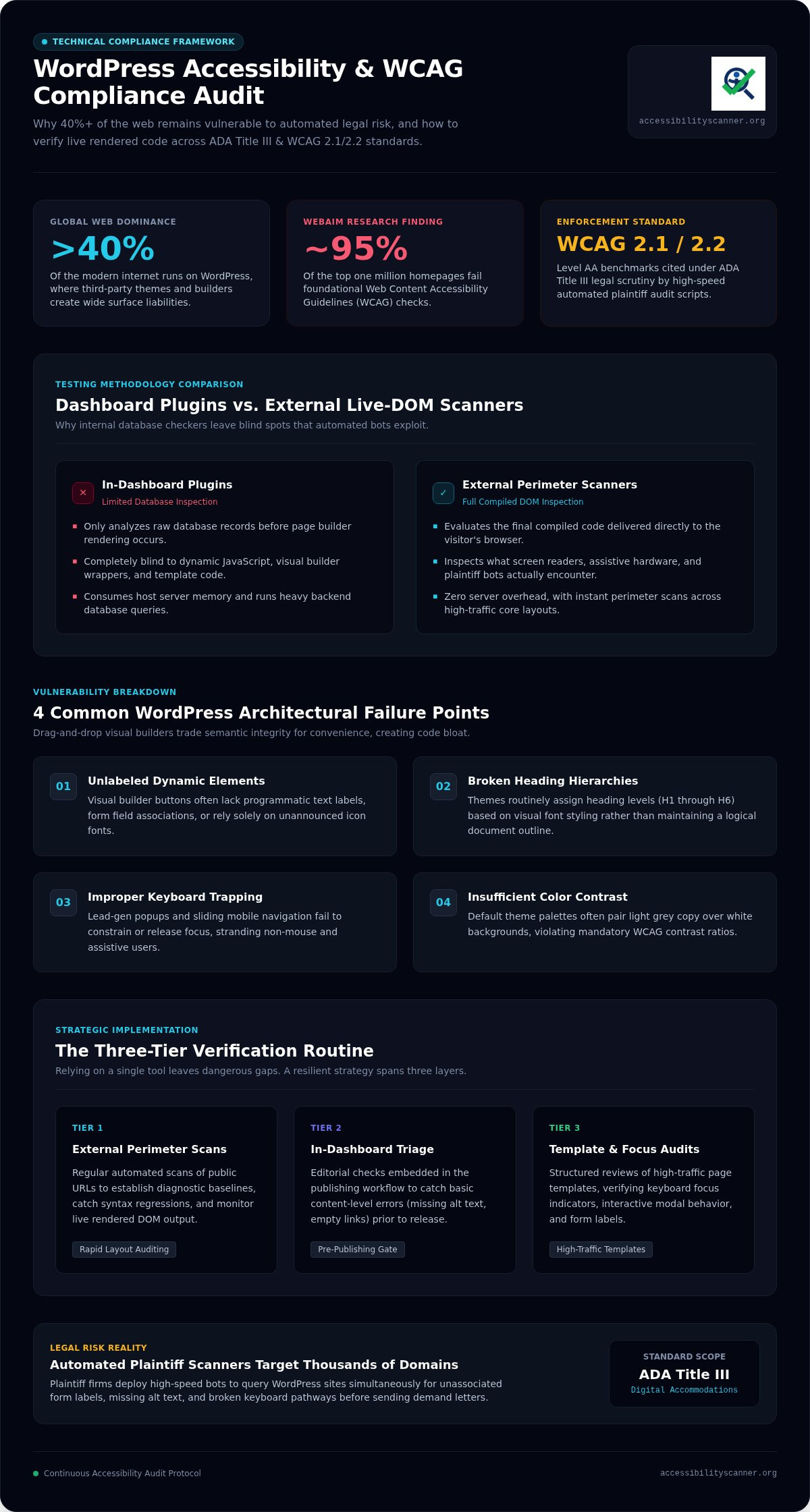
Is your WordPress site as compliant as you think? WordPress powers over 40% of the modern web, but popularity does not equal compliance. While the WordPress core development team works to maintain basic standards, the ecosystem surrounding it creates severe operational liabilities. Every custom theme, third-party block, and tracking plugin you install introduces external code. That code frequently breaks accessibility barriers for users who rely on screen readers, screen magnifiers, or alternate input devices.
When automated bots evaluate your site, they analyze your public-facing code. They don’t care about your good intentions. In fact, research from WebAIM reveals that roughly 95% of the web’s top one million homepages fail basic Web Content Accessibility Guidelines. If you don’t understand how to check website accessibility on wordpress, you leave your organization exposed to severe regulatory action and operational disruption.
Common Architectural Failure Points in WordPress Themes and Builders
Page builders and commercial themes create convenience at the expense of semantic integrity. Visual drag-and-drop builders often wrap simple text blocks in dozens of nested <div> tags. This structure generates code bloat that confuses assistive hardware. Common mechanical failure points include:
- Unlabeled dynamic elements: Visual builder buttons often lack programmatic text labels or rely exclusively on unannounced icon fonts.
- Broken heading hierarchies: Themes frequently select heading levels (H1 through H6) based on visual font size rather than logical document outline.
- Improper keyboard trapping: Commercial lead-generation popups and sliding mobile menus often fail to constrain or release keyboard focus, stranding non-mouse users completely.
- Insufficient color contrast: Default styling palettes often pair light grey copy against white backgrounds, instantly failing WCAG contrast ratios.
Regulatory Pressures Under ADA Title III and WCAG Standards in 2026
Regulatory exposure is no longer a theoretical risk. Federal courts evaluate digital compliance disputes by referencing the Web Content Accessibility Guidelines, specifically WCAG 2.1 and WCAG 2.2 Level AA. Foundational concepts in web accessibility dictate that digital public accommodations must remain usable for people with disabilities, and commercial websites fall directly under ADA Title III scrutiny.
Plaintiff firms do not manually audit every page before filing a claim. Instead, they deploy high-speed automated scanners to query thousands of WordPress domains simultaneously. These scripts instantly flag missing image alternatives, unassociated form labels, and broken keyboard pathways. Once these programmatic errors are recorded, demand letters follow. Knowing how to check website accessibility on wordpress using automated detection gives you a critical advantage: you identify these documented compliance gaps before predatory scanners exploit them.
Three Essential Methods to Check WordPress Accessibility
How do you establish a testing routine that actually protects your site? Relying on a single tool gives you a dangerously incomplete picture. An effective audit strategy uses three distinct evaluation layers: automated perimeter scans, in-dashboard editorial checks, and targeted manual testing. Knowing how to check website accessibility on wordpress across these tiers ensures you catch technical syntax errors and real user friction before either creates operational liability.
External Automated Scanners for Rapid Perimeter Evaluation
External automated scanners inspect the final, compiled code delivered to the visitor’s browser. Unlike dashboard tools, they don’t consume your server memory or run heavy database queries. They analyze your live rendered DOM directly, detecting missing form labels, broken image descriptions, and severe contrast failures in seconds. Testing your public URLs with a free web accessibility checker establishes an instant diagnostic baseline across your core layouts without requiring invasive plugin installations.
WordPress In-Dashboard Plugins for Content Production Triage
Dashboard plugins serve a different, highly tactical purpose: stopping regressions before publication. When authors write blog posts or edit landing pages, admin plugins inspect the post editor in real time. They catch simple editorial mistakes, such as:
- Skipped heading levels (like jumping from an H2 directly to an H4).
- Vague anchor phrases, such as standalone “click here” or “read more” links.
- Images inserted directly into media blocks without descriptive alt attributes.
These tools act as an editorial guardrail. They train your content team to correct minor oversights during the drafting phase, keeping your everyday publishing workflow clean.
Targeted Manual Auditing for Real-World Operational Usability
Automated scanners excel at catching programmatic rule violations, but software cannot determine visual context or interactive logic. A manual check bridges this gap. Referencing the technical standards outlined in the Web Content Accessibility Guidelines (WCAG) 2.1, you should regularly verify core user journeys by unplugging your mouse. Press the Tab key to traverse your primary navigation, interactive forms, and checkout steps. Check whether the focus indicator remains visible, and verify that dynamic modals can be closed using the Escape key.
Mastering how to check website accessibility on wordpress means recognizing the boundary of each method. Use automated scanners for immediate perimeter defense, dashboard plugins for daily content entry, and periodic manual spot checks for complete interactive certainty.
Evaluating WordPress Testing Tools: Dashboard Plugins vs. External Scanners
Which testing tool provides an honest assessment of your site’s compliance? Choosing the wrong architecture gives site owners false confidence while critical code flaws remain visible to plaintiffs and assistive devices. If you are learning how to check website accessibility on wordpress, you must understand the technical divide between internal admin plugins and external automated checkers.
Performance Overhead and Database Impact of Heavy Plugins
Installing an accessibility scanner inside WordPress introduces real infrastructure strain. In-dashboard plugins rely on your server’s PHP processes and MySQL database to parse content. When scanning extensive sites or large WooCommerce stores, these internal audit scripts execute intensive database queries that consume memory, trigger 504 gateway timeouts, and degrade site speed for genuine visitors. External checkers query your site like an ordinary browser, performing diagnostic evaluations without loading bloated tables into your core database.
Compiled DOM Accuracy vs. Server-Side PHP Interpretation
Server-side plugins inspect static post tables, but they rarely see what a human user experiences. Modern WordPress platforms rely heavily on JavaScript to build interfaces dynamically. Slider scripts, interactive filtering, off-canvas carts, and third-party review widgets execute exclusively on the client side. A native PHP plugin cannot accurately evaluate markup that has not rendered yet. External scanners examine the fully assembled Document Object Model (DOM) after JavaScript executes, catching dynamic barriers that internal plugins miss entirely.
| Evaluation Vector | Internal Dashboard Plugins | External Automated Scanners |
|---|---|---|
| Server Footprint | Adds database tables; consumes PHP memory and hosting CPU | Zero server footprint; independent perimeter assessment |
| DOM Coverage | Frequently limited to raw post_content database strings | Evaluates dynamic, JavaScript-rendered live markup |
| Installation Barrier | Requires admin access, plugin updates, and code execution | Runs against public URLs with no code installation |
The Dangerous Fallacy of Automated Remediation Overlays
Do not confuse diagnostic testing tools with JavaScript accessibility widgets or overlays. Several commercial vendors claim a single line of script automatically remediates all WCAG violations. This claim is fundamentally false. Overlays sit on top of your layout without modifying flawed underlying templates, often clashing with personal screen readers and keyboard settings. Federal regulators and consumer advocacy groups have repeatedly emphasized that third-party overlays do not replace valid, semantic source code. True compliance requires identifying your site’s native markup flaws directly rather than attempting to mask them.
To master how to check website accessibility on wordpress, treat automated external scanners as your independent perimeter detector. Keep your production server clean and focus remediation on genuine source code defects.
Step-by-Step Protocol to Check Your WordPress Site for WCAG Compliance
Ready to audit your site without getting bogged down in hundreds of redundant blog posts? Don’t attempt to scan every individual page at once. WordPress operates on a modular template system. A structural error in your header, sidebar, or footer automatically replicates across thousands of URLs. Triage your digital perimeter efficiently by executing this three-step inspection workflow.
Step 1: Run an Immediate Automated Baseline Scan on Key Templates
Begin by isolating your primary theme templates. Select your homepage, a representative single post, an archive index, a standard landing page, and your primary checkout or lead screen. These five layouts represent the vast majority of your site’s codebase. Run each URL through our free ADA & WCAG compliance accessiblity scanner to generate an immediate baseline report. This external check highlights programmatic failures across WCAG Level A and AA standards, instantly logging missing image descriptions, improper form labels, and severe contrast defects.
Step 2: Audit Global Navigation, Header Elements, and Lead Forms
Inspect your site’s primary conversion paths. Global elements often contain silent barriers that block screen readers and keyboard users entirely. Work through this targeted checklist:
- Navigation menus: Ensure multi-tier dropdown menus expose proper ARIA expansion states (such as
aria-expanded="false"toggling totrue) when triggered. - Form labels: Verify that every form input field (such as text boxes, email fields, and checkboxes) links directly to a visible
<label>element via matchingidandforattributes. - Search bars: Confirm that search inputs without visible text labels include a functional
aria-labelor an off-screen descriptive label. - Error validation: Trigger submission errors intentionally to confirm that warning prompts announce clearly rather than relying solely on red visual borders.
Step 3: Execute a Manual Keyboard Operability Assessment
Software cannot verify whether a user can actually navigate your site using only physical keys. Unplug your mouse, place your cursor in the browser address bar, and press Tab. Advance sequentially through the page layout to verify the following elements:
- Bypass links: Confirm that a functional “Skip to content” link appears on the very first Tab press, allowing visitors to jump past bloated header menus.
- Focus indicators: Verify that every clickable button, link, and form control displays a prominent visual ring when selected. Never suppress this outline in your CSS.
- Modal containment: Open any dynamic cart drawer or newsletter modal. Confirm that keyboard focus stays trapped inside the popup until closed via the Escape key.
Following this structured protocol demystifies how to check website accessibility on wordpress. By auditing your core templates systematically, you eliminate widespread compliance vulnerabilities across thousands of pages in a single operational pass.
How to Prioritize Violations and Establish Continuous Monitoring
What should you fix first when an audit reveals dozens of errors? Not every accessibility violation poses an equal operational risk. Attempting to repair decorative layout issues while transactional elements remain broken wastes valuable engineering resources. Understanding how to check website accessibility on wordpress requires a pragmatic triage framework that addresses high-liability bottlenecks before moving to minor cosmetic defects.
Triage High-Liability WCAG Violations First
Focus initial remediation on critical operational blockers. If a visitor cannot complete a core commercial action, your legal exposure spikes dramatically. Plaintiff claims routinely target broken checkout paths and unnavigable lead forms. Prioritize your fixes in this order:
- Interactive form controls: Repair unassociated input labels, missing error notifications, and inaccessible submit buttons across checkout and contact templates immediately.
- Severe color contrast failures: Adjust text and background color pairings on call-to-action buttons, navigation links, and primary body copy to clear required WCAG ratios.
- Keyboard traps: Eliminate scripts that trap focus inside mobile navigation menus, search drawers, or cart flyouts.
- Critical missing alt text: Add functional descriptions to informative images, product diagrams, and linked icons, while designating purely decorative visuals as empty text.
Integrate Automated Scanning into WordPress Maintenance Routines
Website accessibility is not a static milestone. WordPress environments change constantly. A single theme update, builder patch, or newly installed marketing plugin can silently introduce severe markup barriers across previously compliant pages. Establish a recurring automated inspection protocol tied directly to your development lifecycle.
Run automated scans immediately following major core updates, plugin releases, or template overhauls. Whenever content teams launch new custom post types or landing page layouts, scan them prior to public promotion. Use these automated diagnostics as your technological sentry, giving your development team clear visibility into markup gaps without relying on complex, invasive server tools. While automated scanning does not replace comprehensive human verification, it forms an indispensable first line of defense against unexpected regulatory exposure.
Take control of your digital exposure by testing your site with the Free Web Accessibility Checker. Establishing this recurring checkpoint ensures that knowing how to check website accessibility on wordpress translates into durable, long-term compliance.
Take Control of Your WordPress Compliance Posture Today
Are you ready to eliminate digital compliance blind spots before external bots exploit them? Relying on assumptions leaves your site vulnerable. Modern themes and page builders constantly inject hidden barriers into your live rendered code. When you isolate your primary templates and triage critical blockers like broken form labels and missing keyboard pathways, you neutralize major liabilities before they escalate.
Mastering how to check website accessibility on wordpress gives your team clear operational control. You don’t need invasive plugins that bloat your database or expensive enterprise contracts to protect your organization. Scan your WordPress website for free compliance gaps today to get instant automated detection of high-risk WCAG violations with zero code installation required. Objective perimeter scanning gives you the transparent visibility needed to protect your brand, maintain accessible user journeys, and stay ahead of regulatory demands.
Frequently Asked Questions
Can a WordPress plugin make my website 100% ADA compliant automatically?
No plugin can make a WordPress site 100% ADA compliant automatically. Claims of instant compliance through automated fixes are technically impossible. Many WCAG success criteria, like determining whether alt text accurately describes context or whether dynamic error messages make sense, require human evaluation. Automated tools are essential for catching programmatic code errors quickly, but true accessibility demands repairing underlying source code rather than relying on automated plugins to mask defects.
How often should I check my WordPress site for accessibility errors?
You should check your WordPress site whenever you introduce structural code changes or publish new batches of content. At minimum, run an external automated scan once a month and immediately after applying core, theme, or major builder updates. Routine audits ensure that minor plugin updates or editor mistakes don’t quietly create legal liabilities. Continuous perimeter monitoring acts as an early warning sentry before external litigation scripts identify compliance gaps.
What is the difference between an accessibility overlay and an accessibility scanner?
An accessibility scanner is a diagnostic utility that detects code barriers and reports them so developers can repair the source code. An overlay is a third-party JavaScript widget that attempts to modify visual presentation on the fly. Overlays don’t fix underlying source code defects and frequently clash with native screen readers. Regulators and courts do not accept overlay widgets as a legal substitute for genuine WCAG code conformance.
Do automated accessibility scanners detect all WCAG 2.2 violations?
No automated scanner can detect every single WCAG 2.2 failure. Automated testing reliably captures roughly 30% to 50% of barrier types, including syntax errors, color contrast failures, empty links, and missing form labels. However, issues like keyboard focus trapping, logical reading sequences, and meaningful link context require manual operational checks. Automated scanners serve as your rapid first line of defense, surfacing technical violations before you conduct hands-on testing.
What are the most common accessibility issues found on WordPress websites?
The most frequent barriers stem from third-party themes and visual page builders. When evaluating how to check website accessibility on wordpress, scans repeatedly flag low color contrast, missing image alt attributes, and unassigned form input labels. Other frequent failures include broken heading hierarchies, missing visible focus indicators during keyboard navigation, and unlabeled icon buttons. These basic structural defects represent low-hanging fruit for automated demand letters.
Can I get sued under ADA Title III if my WordPress site uses a commercial theme?
Yes. Federal courts hold website owners legally accountable for their public digital storefronts, regardless of whether a commercial vendor built the underlying theme. Commercial themes frequently contain non-compliant markup, unlabelled controls, and poor contrast by default. Claiming that a third-party developer created the barrier offers zero legal protection in ADA Title III disputes. You must inspect your rendered templates to identify and resolve vulnerabilities directly.
How do I check if my WordPress site is fully keyboard accessible?
Learning how to check website accessibility on wordpress requires a direct keyboard test. Unplug your mouse and use the Tab key to move through your layout sequentially. Confirm that a distinct focus outline appears around every interactive element, including links, dropdown menus, and form inputs. Verify that you can trigger buttons with Enter or the Spacebar, close popups with the Escape key, and navigate without encountering keyboard traps.
Frequently Asked Questions
Can a WordPress plugin make my website 100% ADA compliant automatically?
No plugin can make a WordPress site 100% ADA compliant automatically. Claims of instant compliance through automated fixes are technically impossible. Many WCAG success criteria, like determining whether alt text accurately describes context or whether dynamic error messages make sense, require human evaluation. Automated tools are essential for catching programmatic code errors quickly, but true accessibility demands repairing underlying source code rather than relying on automated plugins to mask defects.
How often should I check my WordPress site for accessibility errors?
You should check your WordPress site whenever you introduce structural code changes or publish new batches of content. At minimum, run an external automated scan once a month and immediately after applying core, theme, or major builder updates. Routine audits ensure that minor plugin updates or editor mistakes don’t quietly create legal liabilities. Continuous perimeter monitoring acts as an early warning sentry before external litigation scripts identify compliance gaps.
What is the difference between an accessibility overlay and an accessibility scanner?
An accessibility scanner is a diagnostic utility that detects code barriers and reports them so developers can repair the source code. An overlay is a third-party JavaScript widget that attempts to modify visual presentation on the fly. Overlays don’t fix underlying source code defects and frequently clash with native screen readers. Regulators and courts do not accept overlay widgets as a legal substitute for genuine WCAG code conformance.
Do automated accessibility scanners detect all WCAG 2.2 violations?
No automated scanner can detect every single WCAG 2.2 failure. Automated testing reliably captures roughly 30% to 50% of barrier types, including syntax errors, color contrast failures, empty links, and missing form labels. However, issues like keyboard focus trapping, logical reading sequences, and meaningful link context require manual operational checks. Automated scanners serve as your rapid first line of defense, surfacing technical violations before you conduct hands-on testing.
What are the most common accessibility issues found on WordPress websites?
The most frequent barriers stem from third-party themes and visual page builders. When evaluating how to check website accessibility on wordpress, scans repeatedly flag low color contrast, missing image alt attributes, and unassigned form input labels. Other frequent failures include broken heading hierarchies, missing visible focus indicators during keyboard navigation, and unlabeled icon buttons. These basic structural defects represent low-hanging fruit for automated demand letters.
Can I get sued under ADA Title III if my WordPress site uses a commercial theme?
Yes. Federal courts hold website owners legally accountable for their public digital storefronts, regardless of whether a commercial vendor built the underlying theme. Commercial themes frequently contain non-compliant markup, unlabelled controls, and poor contrast by default. Claiming that a third-party developer created the barrier offers zero legal protection in ADA Title III disputes. You must inspect your rendered templates to identify and resolve vulnerabilities directly.
How do I check if my WordPress site is fully keyboard accessible?
Learning how to check website accessibility on wordpress requires a direct keyboard test. Unplug your mouse and use the Tab key to move through your layout sequentially. Confirm that a distinct focus outline appears around every interactive element, including links, dropdown menus, and form inputs. Verify that you can trigger buttons with Enter or the Spacebar, close popups with the Escape key, and navigate without encountering keyboard traps.
Related guides

WCAG Guidelines in Plain English: Principles, Levels, and Practical Meaning
What if treating accessibility as a pass-or-fail checklist leaves the biggest barriers untouched? The wcag guidelines can feel like a maze of…
Read: WCAG Guidelines in Plain English: Principles, Levels, and Practical Meaning
Wix Website ADA Compliance Check: A Practical Guide for 2026
What if an accessibility scan looks clean but your Wix site still has barriers? Automated tools can flag common issues, but they can’t judge every…
Read: Wix Website ADA Compliance Check: A Practical Guide for 2026
WCAG Compliance Scanner: How to Choose the Right Tool
What if a clean scan gives you confidence while users still face barriers? A wcag compliance scanner can flag common issues, but an automated result…
Read: WCAG Compliance Scanner: How to Choose the Right Tool