Automated Accessibility Scanner: Build a Practical Compliance Monitoring Workflow
A clean scan doesn’t prove your website is accessible. An automated accessibility scanner can quickly flag detectable barriers, but a passing result…

A clean scan doesn’t prove your website is accessible. An automated accessibility scanner can quickly flag detectable barriers, but a passing result can’t confirm that every visitor can use your site. Treat it as an early warning, not a compliance certificate.
Accessibility issues can return after a redesign, content change, or routine site update. Scan findings can also feel overwhelming when a team isn’t sure what to address first. Automated results are useful, but they need review and prioritization. Some barriers only become clear through human evaluation.
This guide explains how to build a repeatable monitoring workflow: choose pages to scan, review findings, prioritize next steps, and check again after updates. You’ll learn how a free automated checker can identify potential issues related to ADA and WCAG standards, where automated testing has limits, and when human review is needed. The goal is a practical process for catching detectable problems and responding consistently, not false certainty.
Key Takeaways
- Set a clear monitoring scope by identifying the pages and site changes your team needs to check.
- Use an automated accessibility scanner to flag detectable barriers, then review each finding before acting on it.
- Choose between one-time scans, recurring checks, and manual evaluation based on the coverage and judgment your process requires.
- Build a repeatable workflow to review results, assign follow-up work, and retest affected pages.
- A free automated check is a practical starting point, but scan results aren’t a manual audit, code remediation, or legal advice.
What Accessibility Compliance Monitoring Means for a Website
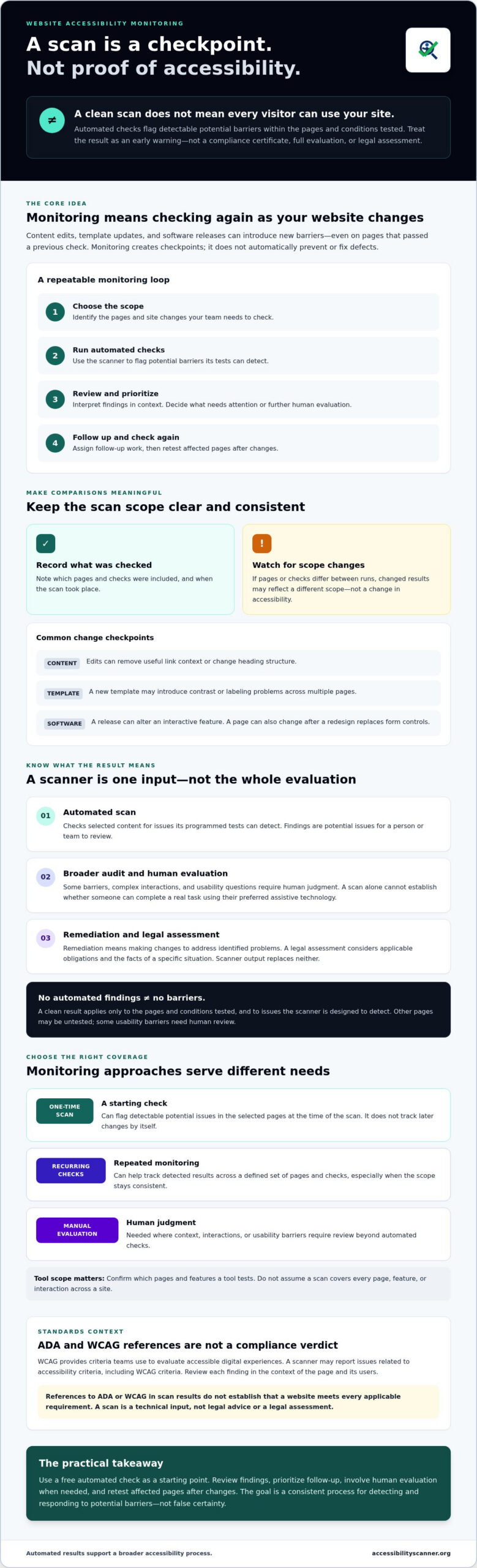
Accessibility work doesn’t end when a page has been checked. Websites change as teams publish content, update templates, and release software. Monitoring means checking again, reviewing what automated tests detect, and deciding what needs attention. It creates checkpoints around changes, but it doesn’t automatically prevent or fix defects.
Website accessibility monitoring is the repeated detection and review of potential barriers as a website changes. It helps teams track issues, but it doesn’t prove full accessibility or legal compliance.
Keep the terms distinct. An automated scan checks selected web content for issues its tests can detect. An audit is a broader evaluation. Remediation means making changes to address identified problems. A legal assessment considers applicable obligations and the facts of a specific situation. A scanner’s output doesn’t replace any of these activities.
A clean result applies only to the pages and conditions tested, and to the issues the scanner is designed to detect. Other pages may be untested, and complex interactions or usability barriers may require human judgment. Treat each result as evidence about that scan, not a verdict on the whole site.
Why accessibility issues can return after a scan
Content edits can remove useful link context or change heading structure. A new template may introduce a contrast or labeling problem across multiple pages. A software release can alter an interactive feature. Each change can create new barriers, even if the affected page passed a previous check.
For example, a product page may work as expected until a redesign replaces its form controls. Scanning the page after the release creates a checkpoint. It won’t stop a defect from being introduced, but it can help the team detect and review the change sooner.
What ADA and WCAG references mean in a monitoring workflow
Web Content Accessibility Guidelines (WCAG) provide criteria teams use to evaluate accessible digital experiences. For background on the broader principles, see Web accessibility. An automated accessibility scanner may report issues related to accessibility criteria, including WCAG criteria. Review each finding in the context of the page and its users.
References to ADA or WCAG in scan results don’t establish that a website meets every applicable requirement. A scan is a technical input, not a legal assessment. Ask qualified counsel to verify which legal requirements apply to your organization and how they should be interpreted.
How an Automated Accessibility Scanner Supports Continuous Testing
Think of scanning as a repeatable check, not a one-time verdict. Submit a page, run the available automated checks, and review the results. This can help a team spot potential barriers and decide what needs further investigation.
For useful comparisons, keep the scope consistent. Record which pages were checked and when, then compare results for those same pages after content, template, or software changes. If the pages or checks differ between runs, a change in results may reflect the different scope rather than a change in accessibility.
What automated checks can contribute
An automated accessibility scanner applies programmed checks to the content within its reach. Its findings identify potential issues for a person or team to review; they don’t show how every visitor experiences the page. Repeating the same checks can reveal new findings or show whether previously reported findings still appear.
Before relying on results, confirm what the tool tests and which pages it includes. The W3C’s Web Accessibility Evaluation Tools List can help you explore evaluation tools. Check each tool’s documentation to verify its scope and capabilities. Don’t assume that a scan covers every page, feature, or interaction across a site.
Where automated scanning has limits
A page can produce no automated findings and still create friction for a visitor. A scan alone can’t establish whether someone can complete a real task using their preferred assistive technology. Context matters: a finding may need interpretation, and some usability barriers require direct human evaluation.
Repeatable scanning can track detected results across a defined set of pages and checks. It cannot provide a comprehensive accessibility evaluation, confirm usability, or certify legal compliance. Treat scanner output as one input to a broader process, with human review where needed.
For a first check, use a free accessibility checker to identify potential issues related to ADA and WCAG. Review findings against the tool’s documented scope, then decide what needs further investigation. A scan can start the work, but it can’t replace your team’s judgment.
Compare Accessibility Monitoring Approaches Before Choosing a Tool
Choose an approach based on what you need to learn and how often your site changes. A one-time scan gives a snapshot. Recurring automated checks help you compare results over time. Manual evaluation adds human judgment about context and real user tasks. These approaches serve different purposes, so a team may use more than one.
| Approach | Coverage | Repeatability | Human judgment | Appropriate use |
|---|---|---|---|---|
| One-time automated scan | Pages and checks included in that scan | Single snapshot; run again to compare | Needed to interpret findings | Initial check or focused review of a page |
| Recurring automated checks | Pages and checks configured for each run | Supports repeated comparison | Needed to review results and investigate context | Checking for changes after releases or on a planned schedule |
| Manual evaluation | Depends on the evaluator, pages, and tasks assessed | Can be repeated, but requires planned evaluation | Central to assessing context and usability | Investigating interactions, user journeys, and issues automation may miss |
Site complexity, release cadence, and team capacity all matter. A small site with infrequent updates may start with focused scans and scheduled review. A site with frequent releases or complex interactions may need recurring checks alongside planned human evaluation. Don’t confuse scan frequency with complete coverage: repeated checks of a narrow page set still leave other pages outside the tested scope.
Automated scans versus manual accessibility evaluation
An automated accessibility scanner can repeat the same available checks, helping teams spot changes in detected results. Manual evaluation brings a person into the process to assess context. Checking whether someone can navigate a menu with a keyboard, use a page with assistive technology, or complete a task may require human judgment. Combine approaches when you need broader evaluation than automated checks alone can provide.
How to assess an accessibility monitoring tool
Before choosing a tool, verify which standards or criteria it references, what tests it runs, and which pages or content types it can check. Review how it explains findings. Can your team understand what to investigate, assign follow-up work, and retest relevant pages using its existing process? Confirm each capability in the provider’s documentation instead of inferring it from general claims. The W3C’s list of accessibility evaluation tools is a starting point for comparison. Verify each option’s current scope directly with its provider.
Turn Accessibility Scan Findings into a Repeatable Team Process
A scan only helps if someone acts on its findings. Give each run a clear scope, a reviewer, and a route to follow-up. Make the process part of release work instead of leaving results in an unread report.
- Establish scope. Record which pages or templates you’ll check and why they’re included.
- Scan. Run the same checks after meaningful releases, content updates, or design changes.
- Review. Have a responsible reviewer confirm each finding and consider its context before assigning work.
- Assign and address. Give confirmed issues an owner and track the next action through your team’s usual workflow.
- Retest. Check affected pages again after changes and record the outcome.
Keep a simple log for every run: scan date, tested scope, finding, status, owner, and retest outcome. This creates a usable history and helps distinguish new findings from issues already under review.
How to triage and assign detected issues
Don’t treat a scanner’s labels as a complete risk score. First, ask a responsible reviewer to confirm whether a finding is present and where it occurs. Then prioritize using practical signals: how the issue could affect people using the page, how many pages are affected, and whether the same pattern appears across the site.
Group related findings when they appear to come from a shared component or template. For example, a repeated issue across several pages may point to a common element the team should investigate. Assign an owner after review, and track the status clearly, such as confirmed, in progress, or awaiting retest.
How to verify changes after fixes
After a change, retest the affected pages and compare the results with the earlier scan. Record whether the original finding remains, no longer appears, or needs further investigation. Add human checks for interactions that automation can’t confidently evaluate, such as completing a key task with keyboard navigation.
Detect with a scan, confirm and address findings through team review, then verify changes with a retest and human checks where needed. Keeping detection, correction, and verification distinct helps prevent a cleared scan result from being mistaken for proof that every user journey works.
To establish a baseline for your workflow, run a free accessibility scan, then log its scope and review the findings before assigning follow-up work.
Use a Free Automated Accessibility Scanner as Your Monitoring Starting Point
A free automated accessibility scanner can help your team begin identifying potential barriers, as long as you don’t treat the first scan as a final verdict. AccessibilityScanner.org offers a free web accessibility checker that detects issues related to ADA and WCAG standards. Use the results to decide what to review next, not to claim that your entire website has been checked or meets every requirement.
When to start with an automated scan
Start with a scan when you need an initial view of detectable issues and a concrete set of findings to review. Before running it, note which pages you intend to check. Record the scan date and scope so future results can be compared fairly. After a meaningful content, design, or software change, repeat the check on relevant pages and note what changed.
Repeated scans can support a monitoring routine, but they only show results for the pages and checks included in each run. Use findings to guide further investigation, then confirm issues before deciding what action they need. A future review of WCAG compliance gaps can build on this process by helping teams examine where potential barriers may remain.
What to do beyond automated results
Scan findings are automated outputs. They aren’t a manual audit, changes to your website code, legal advice, or proof of compliance. Some questions depend on context: does a person understand an instruction, navigate an interaction, or complete a task using their preferred way of accessing the site? Arrange human evaluation when those judgments are needed.
For confirmed technical issues, consult qualified professionals who can assess remediation needs. For questions about which legal requirements apply to your organization, seek advice from qualified counsel. Keep those responsibilities distinct from scanning. A checker can help identify potential issues, but your team still needs to review findings, decide next steps, and retest affected pages after changes.
Start with a clear scope, save the results, and treat them as the first checkpoint in your monitoring process. Run a free automated accessibility scan to begin identifying potential barriers on your website.
Make Accessibility Monitoring Part of Your Routine
Accessibility monitoring works best as a repeatable team habit, not a one-time checkpoint. Set a clear scope, review findings before assigning work, and retest changed pages to track what needs attention. An automated accessibility scanner can surface potential barriers quickly, but its results are a starting point, not proof of full accessibility or legal compliance.
Begin with a free automated check to get findings for independent review. Use them to decide what to investigate, and bring in human evaluation when context or interaction needs judgment. Keep the process practical: scan, review, act, and check again as your website changes.
Use the FAQ below to clarify what an automated scan can and can’t tell you before deciding how to fit it into your monitoring process.
Frequently Asked Questions
What is an automated accessibility scanner?
An automated accessibility scanner checks web pages for detectable accessibility barriers using programmed tests. Depending on the tool’s documented checks, it can flag potential issues related to standards such as WCAG and ADA. Treat its findings as prompts for review, not a complete assessment of every page or user experience. AccessibilityScanner.org provides a free checker for independent website scans and issue detection.
Can an automated accessibility scanner confirm ADA compliance?
No. An automated scan can identify some potential accessibility issues, but it can’t establish that a website meets every applicable legal requirement or works for every visitor. Its findings reflect only the pages and checks included in the scan. Use scan results as technical information for further review, not as legal advice or a compliance certificate. Consult qualified counsel about legal requirements that may apply to your organization.
How often should a website be scanned for accessibility?
Scan on a planned schedule and after meaningful changes, such as a redesign, new page template, content update, or software release. The right frequency depends on how often the site changes and which pages your team needs to monitor. Record the scan date and tested scope so you can compare like with like. Repeat checks can reveal changes in results, but they don’t prevent accessibility issues from appearing.
What accessibility issues can an automated scanner detect?
A scanner can flag potential barriers covered by its documented automated checks. Findings depend on the tool’s testing criteria and the pages scanned, so don’t assume every tool checks the same issues. Review the scanner’s documentation to understand its scope, then verify findings in context. Some accessibility concerns involve meaning, usability, or interaction and may require human evaluation rather than an automated result.
Do automated accessibility scanners replace manual audits?
No. Automated scanning and manual evaluation serve different purposes. A scanner can repeat programmed checks and surface potential issues, while human evaluation can examine context, keyboard use, assistive technology, and whether people can complete tasks. Broader accessibility evaluation may need both methods. AccessibilityScanner.org provides automated checking only; it doesn’t provide manual audits, code remediation, or legal advice.
Can a free accessibility scanner monitor an entire website?
That depends on the scanner’s documented coverage, supported inputs, and page limits. A free tool may check the pages included in a particular scan, but that doesn’t mean it automatically covers every page, template, or interaction on a site. Confirm the tool’s scope before relying on it for monitoring. Track which pages were checked and run additional checks where your site’s needs require them.
What should I do after an accessibility scanner finds issues?
Review each finding before assigning follow-up work. Confirm where it appears, consider its potential user impact, and check whether a shared template or component could affect multiple pages. Assign an owner to confirmed issues, record their status, and retest affected pages after changes. Add human evaluation when an interaction or task needs judgment. Scanner results identify potential issues; they don’t make changes or provide legal advice. Run a free automated accessibility scan to identify potential barriers and begin your review.
Frequently Asked Questions
What is an automated accessibility scanner?
An automated accessibility scanner checks web pages for detectable accessibility barriers using programmed tests. Depending on the tool’s documented checks, it can flag potential issues related to standards such as WCAG and ADA. Treat its findings as prompts for review, not a complete assessment of every page or user experience. AccessibilityScanner.org provides a free checker for independent website scans and issue detection.
Can an automated accessibility scanner confirm ADA compliance?
No. An automated scan can identify some potential accessibility issues, but it can’t establish that a website meets every applicable legal requirement or works for every visitor. Its findings reflect only the pages and checks included in the scan. Use scan results as technical information for further review, not as legal advice or a compliance certificate. Consult qualified counsel about legal requirements that may apply to your organization.
How often should a website be scanned for accessibility?
Scan on a planned schedule and after meaningful changes, such as a redesign, new page template, content update, or software release. The right frequency depends on how often the site changes and which pages your team needs to monitor. Record the scan date and tested scope so you can compare like with like. Repeat checks can reveal changes in results, but they don’t prevent accessibility issues from appearing.
What accessibility issues can an automated scanner detect?
A scanner can flag potential barriers covered by its documented automated checks. Findings depend on the tool’s testing criteria and the pages scanned, so don’t assume every tool checks the same issues. Review the scanner’s documentation to understand its scope, then verify findings in context. Some accessibility concerns involve meaning, usability, or interaction and may require human evaluation rather than an automated result.
Do automated accessibility scanners replace manual audits?
No. Automated scanning and manual evaluation serve different purposes. A scanner can repeat programmed checks and surface potential issues, while human evaluation can examine context, keyboard use, assistive technology, and whether people can complete tasks. Broader accessibility evaluation may need both methods. AccessibilityScanner.org provides automated checking only; it doesn’t provide manual audits, code remediation, or legal advice.
Can a free accessibility scanner monitor an entire website?
That depends on the scanner’s documented coverage, supported inputs, and page limits. A free tool may check the pages included in a particular scan, but that doesn’t mean it automatically covers every page, template, or interaction on a site. Confirm the tool’s scope before relying on it for monitoring. Track which pages were checked and run additional checks where your site’s needs require them.
What should I do after an accessibility scanner finds issues?
Review each finding before assigning follow-up work. Confirm where it appears, consider its potential user impact, and check whether a shared template or component could affect multiple pages. Assign an owner to confirmed issues, record their status, and retest affected pages after changes. Add human evaluation when an interaction or task needs judgment. Scanner results identify potential issues; they don’t make changes or provide legal advice. Run a free automated accessibility scan to identify potential barriers and begin your review.
Related guides

WCAG Guidelines in Plain English: Principles, Levels, and Practical Meaning
What if treating accessibility as a pass-or-fail checklist leaves the biggest barriers untouched? The wcag guidelines can feel like a maze of…
Read: WCAG Guidelines in Plain English: Principles, Levels, and Practical Meaning
Wix Website ADA Compliance Check: A Practical Guide for 2026
What if an accessibility scan looks clean but your Wix site still has barriers? Automated tools can flag common issues, but they can’t judge every…
Read: Wix Website ADA Compliance Check: A Practical Guide for 2026
WCAG Compliance Scanner: How to Choose the Right Tool
What if a clean scan gives you confidence while users still face barriers? A wcag compliance scanner can flag common issues, but an automated result…
Read: WCAG Compliance Scanner: How to Choose the Right Tool