An accessible cookie consent banner is a consent dialogue that any user – including those who navigate by keyboard only or use a screen reader – can read, understand, and act on without assistance. It meets WCAG 2.1 AA as the legal floor, handles focus correctly, and gives every user equal ability to accept, reject, or manage cookie preferences.
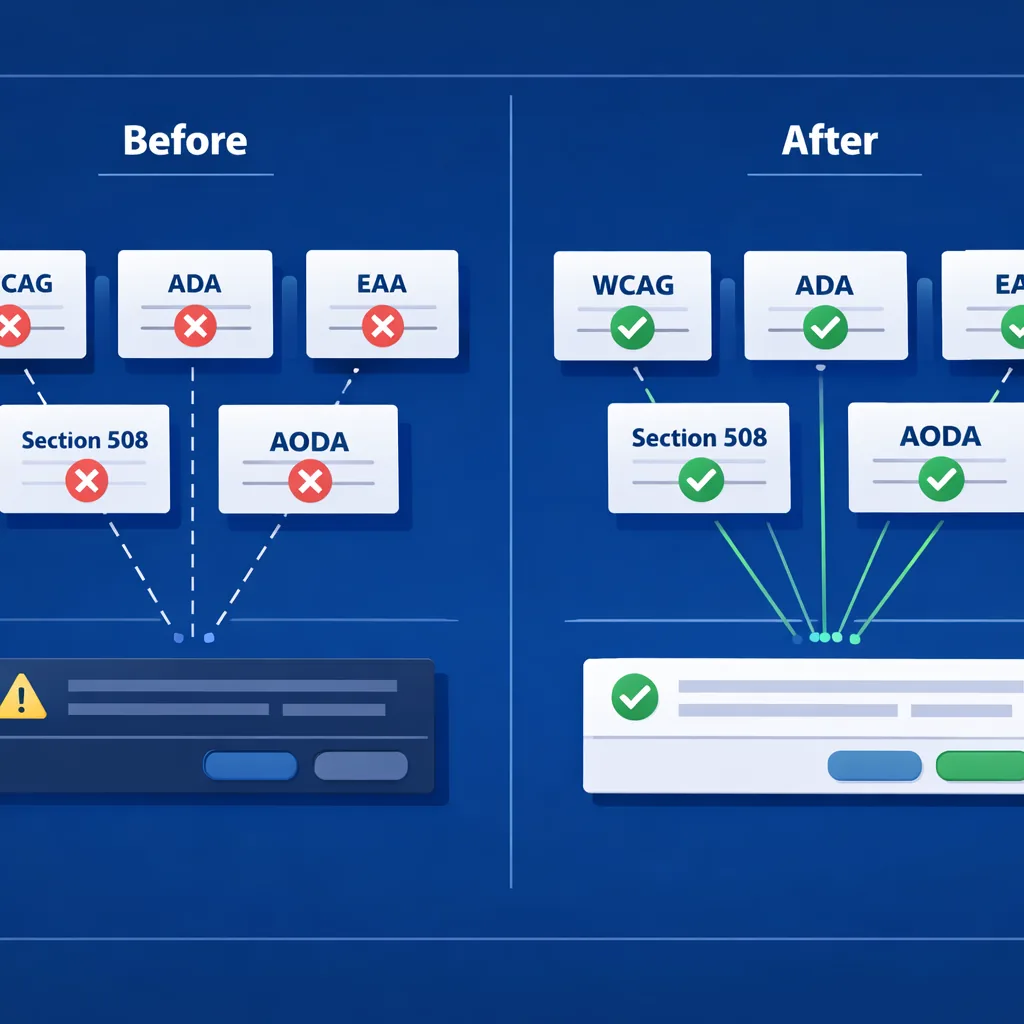
The European Accessibility Act came into force on June 28, 2025, requiring businesses selling products or services in the EU to meet WCAG 2.1 AA standards. It applies to any company with 10+ employees or €2M+ turnover selling into EU markets. That means your cookie banner is no longer just a GDPR obligation. It is also a WCAG obligation with a second regulator ready to enforce it.
Here is the failure that makes this urgent. A keyboard user lands on your site. The cookie banner appears. They press Tab to reach the Accept or Reject button. Focus does not move to the banner: it was injected at the bottom of the DOM and sits outside the natural tab order. They cannot dismiss it. They cannot interact with the page behind it. They cannot give or withdraw consent. That is simultaneously a WCAG 2.1 SC 2.1.2 No Keyboard Trap violation and an invalid GDPR consent mechanism. One broken banner, two regulators with enforcement authority.
This article maps every technical failure to its WCAG criterion, shows you the fix, and closes with a testing protocol and a checklist you can hand to a developer or auditor.
One Broken Banner, Two Regulators
Cookie banners are interactive UI components (modals, effectively) and every WCAG rule that applies to a modal applies to a consent banner. That point alone is missed by most site owners who treat the banner as a legal checkbox rather than an interface element.
The accessibility failure and the consent failure are legally distinct events with different enforcement bodies.
The EAA market surveillance authority in each EU member state can act on the accessibility failure. Fines vary by member state: up to €100,000 per violation in Germany and up to €1,000,000 in Spain. The data protection authority in each member state can simultaneously act on the GDPR failure. Under GDPR Article 7, consent must be “freely given, specific, informed and unambiguous.” A banner that excludes users who rely on assistive technology cannot satisfy “freely given.” Any cookies set without valid consent expose the site to separate DPA enforcement, including data deletion orders and fines up to 4% of global annual turnover under GDPR Article 83.
One banner. Two enforcement actions. Neither requires the other to act first.
For US-based sites: ADA Title III has no government-mandated compliance deadline for web accessibility. Enforcement is lawsuit-driven, and courts consistently apply WCAG 2.1 AA as the de facto standard. If your site serves EU users, you have a hard deadline. June 28, 2025 has already passed.
Which WCAG Success Criteria Apply to Cookie Banners
WCAG 2.1 AA is the current legal floor under the EAA (via EN 301 549 v3.2.1). WCAG 2.2, published in October 2023, adds criteria that apply directly to banner behavior. Both sets matter. Do not treat WCAG 2.1 as sufficient and WCAG 2.2 as optional: auditors are already testing against 2.2.
The core criteria from WCAG 2.1 that govern banner behavior:
SC 1.4.3 Contrast Minimum (AA): All text, including button labels, at 4.5:1.
SC 2.1.1 Keyboard (A): All functionality operable by keyboard.
SC 2.1.2 No Keyboard Trap (A): Focus must not be permanently trapped or permanently escapable.
SC 4.1.2 Name, Role, Value (A): All UI components must have an accessible name, role, and state.
SC 1.3.1 Info and Relationships (A): Structure conveyed visually must also be programmatically determinable.
Three WCAG 2.2 additions apply directly to cookie banners:
WCAG 2.2 Criterion
What it means for cookie banners
SC 2.4.11 Focus Not Obscured (AA)
The banner overlay must not permanently hide the focused element behind it
SC 2.5.8 Target Size Minimum (AA)
Accept/Reject/Manage buttons must be at least 24×24 CSS px; 44×44 is recommended
SC 2.4.12 Focus Not Obscured Enhanced (AAA)
Noted for full WCAG 2.2 conformance; focused element must be fully visible
For a broader grounding in how WCAG is structured, the WCAG guidelines in plain English article covers the principles, levels, and practical meaning behind the standard. WordPress site owners sourcing their consent banner from a theme-bundled plugin should also read How to Choose an Accessible WordPress Theme Before You Buy: theme-level accessibility problems compound banner-level ones.
The 6 Technical Requirements for an Accessible Cookie Consent Banner
These fixes follow DOM and interaction order, the sequence a developer would implement them. Work through them in this order.
Without role="dialog", screen readers treat the banner as ordinary page content. They do not announce a boundary, and users have no programmatic signal that a decision is required. Without aria-modal="true", some screen readers allow the virtual cursor to escape into the background page content, bypassing the banner entirely.
One caveat: aria-modal="true" is not universally honored across screen reader and browser combinations. Pair it with the inert attribute on all non-banner sibling elements for reliable focus containment. This satisfies WCAG SC 4.1.2 Name, Role, Value.
2. Place the Banner at the Top of the DOM
Place the banner markup immediately after the opening <body> tag, not injected at the bottom of the DOM via JavaScript.
Most consent management platforms inject the banner markup by appending it to the end of the document body at runtime. Keyboard users navigate in DOM order. A banner sitting at the DOM bottom requires tabbing through every link, button, and interactive element on the page before reaching it. On a page with 80 interactive elements, that is 80 Tab presses before the user can give or withhold consent.
The fix is straightforward: render the banner HTML server-side or inject it as the first child of <body>. If your CMP only supports bottom injection, wrap it in a script that moves the node immediately after the body opens. This supports SC 1.3.1 Info and Relationships and SC 2.1.1 Keyboard.
3. Trap Focus Inside the Banner
When the banner is open, Tab and Shift+Tab must cycle only through banner controls. Focus must never reach the page behind the overlay while the banner is active.
Two implementation paths:
Modern approach: Apply the inert attribute to all sibling elements of the banner container. Inert removes them from the tab order and from the accessibility tree entirely. Browser support covers all current major browsers.
Legacy fallback: Implement a JavaScript focus trap loop that intercepts Tab and Shift+Tab keydown events and redirects focus to the first or last focusable element within the banner when the boundary is reached.
When the banner closes, return focus to the element that held focus before the banner appeared, typically the first focusable element of <main>, or whatever link or button the user was about to activate. Dropping focus to <body> on close is a common mistake that forces keyboard users to re-navigate from the top of the page. This satisfies SC 2.1.2 No Keyboard Trap.
For the full picture on keyboard navigation requirements, the keyboard accessibility guide covers Tab behavior, focus indicators, and skip links in more depth.
4. Wire the Escape Key to a Reject or Dismiss Action
Pressing Escape must dismiss the banner or activate the Reject/Close option. It must never be a no-op.
This is the most common keyboard failure in deployed banners. Users who rely on keyboard navigation instinctively press Escape to close overlays: it is the standard browser and OS convention. A banner that ignores Escape traps those users more effectively than one with a broken focus loop, because they have no other exit.
Failure to handle Escape maps directly to WCAG SC 2.1.2 No Keyboard Trap. A keyboard-accessible implementation that omits Escape handling is incomplete regardless of how well it handles Tab.
5. Meet 4.5:1 Contrast, Including Button Labels
The 4.5:1 minimum ratio under SC 1.4.3 applies to all text in the banner: body copy, button labels, helper text, toggle labels, and link text.
The failure mode most teams miss is button-label contrast on specific button states. A white “Accept All” label on a blue-gray button might appear to pass visually but fail at 3.8:1 when measured against the actual button background color. The same button in its hover or focus state, when the background shifts, may pass the default state and fail on interaction.
Check contrast on every button state: default, hover, and focus. Use a color contrast checker to measure each state individually. If your focus state uses an outline rather than a background color change, check that the outline itself meets the contrast requirements under SC 1.4.11 Non-text Contrast.
According to the 2026 WebAIM Million analysis, low-contrast text appeared on 83.9% of home pages, making it the single most common accessibility failure for the seventh consecutive year. Cookie banners are not exempt, and they are frequently built with custom CSS that bypasses whatever accessible defaults the base theme or framework provides.
6. Label Every Toggle and State in the Preference Centre
This is where most real-world implementations fail, and where all competing articles stop short. The first-layer banner is only half the problem. The preference centre, the secondary panel where users manage individual cookie categories, is a fully interactive form component that must meet the same WCAG standard.
Every category toggle requires:
A visible text label associated with the toggle using the for/id pattern or aria-labelledby
aria-checked announcing the current state (“true” for on, “false” for off) updated dynamically when the user interacts
aria-expanded on any collapsible vendor lists within that category, updated to reflect open/closed state
A button or heading that receives focus when a section expands, not just a visual change
For the for/id pattern on toggles that use a visually-styled checkbox or switch:
If you use a <div> or <span> styled as a toggle instead of a native checkbox, you must add role="switch" and manage aria-checked state manually in JavaScript. Native checkboxes handle this automatically.
Expandable vendor lists within each category should use <ul> semantics, and the count of vendors should be communicated to screen readers, either through visible text or an aria-label on the list element. A vendor list that expands visually but announces nothing to a screen reader fails SC 4.1.2.
The preference centre must also trap focus when open. If it opens as a second panel or modal layer over the first-layer banner, it needs its own role="dialog", aria-labelledby, and focus trap, not just a CSS transition.
The for/id and aria-labelledby patterns used here are the same techniques that apply to accessible forms generally. The accessible forms guide covers the underlying labeling requirements in detail if you need to go deeper on the form markup.
What a Non-Accessible Banner Means for GDPR Consent Validity
GDPR Article 7 requires that consent be “freely given, specific, informed and unambiguous.” When a disabled user cannot operate the cookie banner (because focus does not reach it, because the Escape key does nothing, because the toggle states are not announced) they cannot provide or withhold consent. Any cookies set before or without their interaction are set without valid consent under the regulation.
Cookie consent accessibility is not a secondary concern that sits beneath “proper” GDPR compliance. It is a precondition for GDPR compliance for any user relying on assistive technology. The data protection authority in each EU member state can act on this independently of any EAA enforcement action. One banner failure can generate enforcement proceedings from two separate regulatory bodies: the market surveillance authority for the accessibility violation under the EAA, and the DPA for the consent validity failure under GDPR.
For US-based businesses without EU users, ADA Title III remains lawsuit-driven with no fixed deadline. An inaccessible banner is an inaccessible interactive element, and that is the basis on which ADA Title III digital complaints are filed.
This article is for general informational purposes and is not legal advice.
How to Test Your Cookie Consent Banner for Accessibility
Manual testing is required. Automated tools catch contrast failures, missing ARIA labels, and missing button roles. They cannot verify focus management, screen reader announcement, or Escape key behavior. Plan for both.
Manual keyboard and screen reader protocol:
Open the page in a browser with no extensions or assistive technology active. Press Tab from the browser address bar. Confirm that the first Tab lands on the cookie banner, not on a navigation link or skip-nav button that sits before the banner in the DOM.
Tab through every control in the first-layer banner. Confirm that Accept, Reject, and Manage Preferences buttons are all reachable and that Tab does not escape to the page behind the overlay.
Press Escape. Confirm the banner dismisses or activates the Reject/Close function. If the banner remains open and focus is stuck, you have a SC 2.1.2 failure.
Activate “Manage Preferences” or equivalent. Confirm focus moves into the preference centre panel, that the panel is trapped (Tab does not escape), and that each toggle can be activated by keyboard. Confirm Escape closes the preference centre and returns focus appropriately.
Test with NVDA + Chrome and VoiceOver + Safari. Confirm the banner announces itself when it appears (either through focus movement to role="dialog" or a live region announcement), that all controls have descriptive accessible names, and that toggle state changes (“Analytics Cookies: on” / “off”) are read aloud after interaction.
Automated scanning step:
Run your page URL through a free website accessibility checker to flag contrast failures, missing ARIA labels, and unlabeled button roles. Automated tools catch approximately 30-40% of accessibility issues. They are the right starting point, not the finish line.
After your automated scan, use the accessibility audit checklist to extend the check beyond the banner to the full page.
Cookie Consent Banner Accessibility Checklist
This table covers both the first-layer banner and the preference centre. Use it as a QA handoff document before deployment or as an audit intake reference.
Requirement
Pass Criteria
role="dialog" with aria-labelledby
Banner container has both attributes; aria-labelledby points to a visible heading
aria-modal="true" + background inert
Background content marked inert when banner is open
DOM placement
Banner markup appears immediately after <body> open tag, not appended by JavaScript at DOM bottom
Focus shift on open
Focus moves to banner heading or first control when banner appears
Focus trap active
Tab and Shift+Tab do not escape banner while it is open
Escape key wired
Escape dismisses the banner or activates Reject/Close
Focus returned on close
Focus returns to the element that held focus before the banner opened
Body text contrast 4.5:1
All text in banner body passes SC 1.4.3 at 4.5:1 minimum
Button label contrast 4.5:1
Accept, Reject, Manage buttons pass on default, hover, and focus states
Touch targets 24×24 px minimum
All controls meet WCAG 2.2 SC 2.5.8
Focus not obscured
Banner overlay does not permanently hide focused elements (WCAG 2.2 SC 2.4.11)
Preference centre role="dialog"
Second-layer panel has its own role="dialog" and aria-labelledby
Toggle labels: for/id or aria-labelledby
Each category toggle has a programmatically associated visible label
Toggle state announced: aria-checked
aria-checked is present and updates dynamically on each toggle
Category expand/collapse: aria-expanded
Collapsible vendor sections carry aria-expanded; value updates on interaction
Reopen mechanism
Users can re-access preferences after dismissal; the reopen link or button is keyboard accessible
Manual screen reader test completed
NVDA + Chrome and VoiceOver + Safari tested, not automated tools only
Frequently Asked Questions
Does My Cookie Banner Need to Be WCAG Compliant?
Yes. If your site serves users in the EU, the EAA has required WCAG 2.1 AA compliance since June 28, 2025, for businesses with 10+ employees or €2M+ turnover. In the US, ADA Title III applies to businesses open to the public: enforcement is lawsuit-driven, with courts consistently applying WCAG 2.1 AA as the de facto standard. The cookie banner is a user-facing interactive element and falls under the same WCAG requirements as any other UI component on the page.
Can an Inaccessible Cookie Banner Invalidate GDPR Consent?
Yes. GDPR Article 7 requires consent to be “freely given.” If a user with a disability cannot operate the banner (because focus does not reach it, because the Escape key is unresponsive, because toggle states are not announced) they cannot provide or withhold consent. Any cookies set without that interaction are set without valid GDPR consent. The data protection authority in each EU member state can act on this independently, meaning an inaccessible banner creates simultaneous exposure under both the EAA and GDPR: two enforcement bodies, one failure.
How Do I Know If My Cookie Banner Passes Accessibility Requirements?
Start with a free automated scanner to catch contrast failures, missing ARIA labels, and incorrect button roles. Automated tools reliably detect approximately 30-40% of issues. Then perform a full manual keyboard walkthrough using the five-step protocol in this article. Test with at least one screen reader: NVDA on Windows with Chrome, and VoiceOver on Mac or iOS with Safari. Automated tools cannot verify focus management, Escape key behavior, or whether screen readers correctly announce toggle state changes. Those require manual verification. For a full-site check beyond the banner, see How to Check Your Homepage for ADA Accessibility Issues.
Getting the Banner Right Before the Next Audit
An inaccessible cookie banner is a dual compliance failure. It hands two regulatory bodies an enforcement hook on the same broken element. The EAA is already in force. GDPR has been enforced on consent mechanisms for years. The combination is what most competing guidance misses.
The fixes in this article (DOM placement, focus trapping, Escape key handling, ARIA roles, contrast on every button state, and complete preference centre labeling) are the implementation checklist your developer needs. Most consent management platforms do not ship accessible banners by default. Out-of-the-box configuration is not sufficient. Someone on your team needs to verify each item on the checklist above before you consider the banner compliant.
Run a free accessibility scan on the page behind your consent banner to check contrast, ARIA labels, and button roles before your next regulatory audit. Then bring the manual testing protocol to confirm what the automated scan cannot reach.
Frequently Asked Questions
Does My Cookie Banner Need to Be WCAG Compliant?
Yes. If your site serves users in the EU, the EAA has required WCAG 2.1 AA compliance since June 28, 2025, for businesses with 10+ employees or €2M+ turnover. In the US, ADA Title III applies to businesses open to the public: enforcement is lawsuit-driven, with courts consistently applying WCAG 2.1 AA as the de facto standard. The cookie banner is a user-facing interactive element and falls under the same WCAG requirements as any other UI component on the page.
Can an Inaccessible Cookie Banner Invalidate GDPR Consent?
Yes. GDPR Article 7 requires consent to be “freely given.” If a user with a disability cannot operate the banner (because focus does not reach it, because the Escape key is unresponsive, because toggle states are not announced) they cannot provide or withhold consent. Any cookies set without that interaction are set without valid GDPR consent. The data protection authority in each EU member state can act on this independently, meaning an inaccessible banner creates simultaneous exposure under both the EAA and GDPR: two enforcement bodies, one failure.
How Do I Know If My Cookie Banner Passes Accessibility Requirements?
Start with a free automated scanner to catch contrast failures, missing ARIA labels, and incorrect button roles. Automated tools reliably detect approximately 30-40% of issues. Then perform a full manual keyboard walkthrough using the five-step protocol in this article. Test with at least one screen reader: NVDA on Windows with Chrome, and VoiceOver on Mac or iOS with Safari. Automated tools cannot verify focus management, Escape key behavior, or whether screen readers correctly announce toggle state changes. Those require manual verification. For a full-site check beyond the banner, see How to Check Your Homepage for ADA Accessibility Issues .