How to Prioritize Accessibility Issues After Running a Website Scan
Staring at 200 scan violations and no clear starting point? Rank fixes by severity, page traffic, and legal exposure with a P0-P3 matrix and role.


You ran the scan. The report came back with 200 violations across 40 pages. Fixing them in the order your scanner listed them is the wrong move – here is the right one.
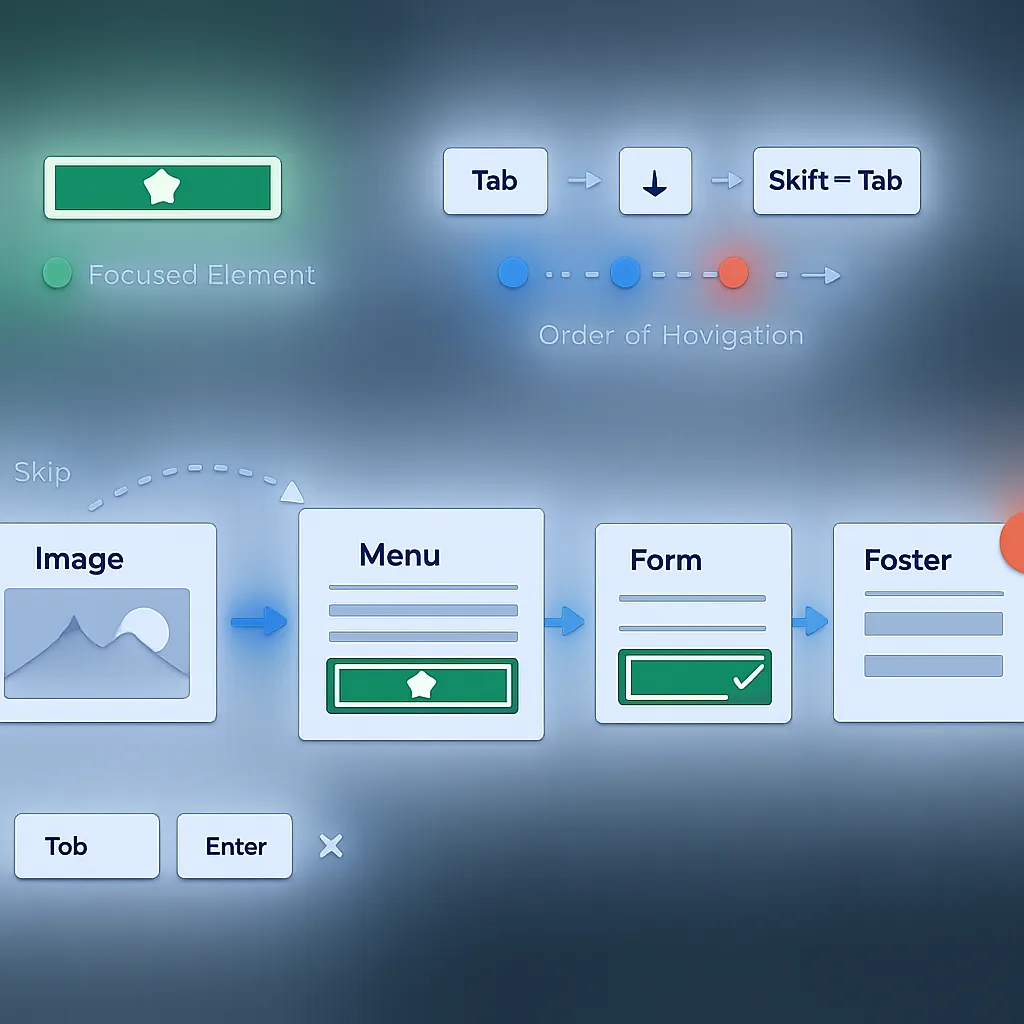
A raw scan report is not a fix list. It is a raw list. A keyboard trap on your checkout page and a missing alt attribute on a footer logo are both flagged as violations, but one blocks a real user from completing a purchase right now. The other is a rounding error. Treating them equally means your team burns time on low-risk cleanup while the highest legal exposure sits untouched.
If you have not yet run a scan, use the free website accessibility checker to generate the report this framework is built for. If you already have results in hand, start with Step 1.
Why the Order You Fix Accessibility Issues Matters
Not all WCAG violations carry equal weight. The distinction that matters most is whether an issue blocks task completion entirely, makes it harder, or has no real-world impact on users.
The legal context reinforces this. Under ADA Title III, private businesses face no government-mandated compliance deadline for web accessibility. Enforcement is lawsuit-driven, and courts consistently apply WCAG 2.1 AA as the de facto standard. Demand letters most frequently cite violations that prevent users from completing core tasks: submitting a form, logging in, checking out. Fixing a decorative image’s alt text before addressing a broken keyboard workflow does nothing to reduce that exposure.
Every prioritization decision should weigh three dimensions:
- Severity: does this issue block task completion, degrade it, or affect only a minor detail?
- Exposure: how many users encounter this issue per day (traffic multiplied by pages affected)?
- Effort: is this a 15-minute content edit or a multi-day engineering change?
The four steps below work through these dimensions in order, narrowing your raw violation list into a sorted, scored, owned backlog.
Step 1: Classify Every Issue by Severity
Prioritizing accessibility issues starts with classifying each violation by its impact on real users. Most scanner reports already assign severity labels. Your job is to trust the Critical and High categories and work top-down.
| Severity | Definition | Example violations | WCAG level | Legal exposure |
|---|---|---|---|---|
| Critical | Completely blocks a user from completing a task | Keyboard trap in a modal, missing form submit label, inaccessible login field | Level A | Highest: most cited in demand letters and ADA complaints |
| High | Makes a core task significantly harder without blocking it | Low color contrast on CTA buttons, video missing captions, no skip navigation | Level A / AA | High: frequently cited; directly affects users with low vision and hearing impairments |
| Medium | Degrades experience but does not prevent task completion | Inconsistent heading hierarchy, missing page language attribute, redundant alt text | Level A / AA | Moderate: rarely a primary complaint but can appear in pattern-of-violations arguments |
| Low | Minor UX issues or edge cases with no significant user impact | Decorative image with empty alt attribute, suboptimal link text on a low-traffic page | Level AAA | Low: unlikely to trigger enforcement as a standalone violation |
Step 1 output: a severity-classified list of every issue in your scan report.
Step 2: Weight Severity by Page Traffic
A Critical violation on your checkout page is not the same priority as an identical Critical violation on a 2019 blog post with four monthly visitors. Traffic is the multiplier that turns a flat severity list into a ranked fix order.
Getting traffic data does not require precision. Open Google Analytics (Pages and screens report, last 30 days) or Google Search Console (Performance, Pages, sorted by clicks). A rough High / Medium / Low classification is enough to apply the matrix below.
| Page traffic | Critical | High | Medium | Low |
|---|---|---|---|---|
| High (top-20 pages) | P0: fix this week | P1: fix this sprint | P2: fix within 60 days | P3: backlog |
| Medium (pages 21-100) | P1: fix this sprint | P2: fix within 60 days | P3: backlog | P3: backlog |
| Low (pages 100+) | P1: fix this sprint | P2: fix within 60 days | P3: backlog | Deprioritize |
Two rules for applying this matrix. First, any Critical violation on any page is at minimum P1. Traffic elevates priority but never reduces severity. Second, task-critical pages (checkout, login, contact form, booking) always count as High traffic regardless of raw visit numbers. They are your highest legal exposure surface.
If you have not yet checked your homepage as a starting point, see How to Check Your Homepage for ADA Accessibility Issues.
Step 2 output: a P0-P3 scored list, ready for sprint planning.
Step 3: Check for Global Component Issues Before You Touch a Single Page
This is the step most teams skip, and it is the highest-efficiency move available after any site-wide scan.
The same violation appearing on 60 pages often traces back to a single shared component: your navigation, footer, primary button style, or form field template. Fix it at the source and every page inherits the fix simultaneously.
How to spot global component issues: sort your scan report by violation type rather than by page URL. If the same error code appears 40 or more times and the underlying code snippets look nearly identical across pages, you are looking at a component-level issue.
Concrete example: a site-wide color contrast failure in the primary button CSS (background: #0057B7; color: #FFFFFF; ratio: 3.8:1, below the WCAG 4.5:1 requirement for normal-weight body text) shows up as 80 separate violations across 80 pages in a raw scan report. One CSS rule change resolves all 80 simultaneously. Without spotting the pattern, a developer could spend three days fixing the same issue page by page.
A cookie consent banner is another canonical example. A single broken template creates a sitewide WCAG failure on every page load. See How to Make a Cookie Consent Banner Accessible for the specific fixes.
Rule of thumb: resolve global component issues before any individual page issues, even when a single-page P0 exists. A component fix may close multiple P0s in one change.
Step 3 output: a component-grouped shortlist of issues where one fix replaces many.
Step 4: Assign Ownership by Issue Type, Not by Page
Accessibility fixes stall when a scan report gets shared with “the team” and sits in a shared inbox for six weeks. Every P0 and P1 issue needs a named person before the sprint begins. Not a team name. A person’s name.
Assign ownership by issue type. Routing everything to the development team is the single most common mistake in accessibility remediation, and content responsibilities are where the developer bottleneck forms.
| Issue type | Owner | Specific examples |
|---|---|---|
| Keyboard navigation and focus management | Developer | Keyboard traps, focus order, skip-nav links, custom widget ARIA |
| Image alt text | Content editor | Missing or empty alt text on images, decorative image handling |
| Color contrast | Designer | Button contrast ratios, text-on-background ratios, focus indicator visibility |
| Form labels and error messages | Developer + Content editor | <label> association, error message text, required field indicators |
| Heading hierarchy | Content editor | Skipped heading levels, missing H1, incorrect nesting in blog posts |
| Captions and transcripts | Content editor | Video captions, audio descriptions, transcript files |
| Re-scan and ticket closure | Project manager | Confirm fix deployed, run targeted re-scan, close ticket with date |
The content editor row is the most important to get right. Alt text, heading structure, and caption files are not developer tasks. Assigning them correctly cuts your remediation timeline significantly. If your site runs on WordPress and you are discovering systematic heading or template issues, How to Choose an Accessible WordPress Theme Before You Buy covers what originates at the theme level versus the content level.
Step 4 output: every P0 and P1 issue has a named owner and is ready to become a sprint ticket.
Quick Reference: What to Fix First If You Have Limited Time
| Time available | Fix this first | Why |
|---|---|---|
| 1 hour | All keyboard traps and missing form labels on your top 3 pages | These are the most-cited violations in ADA demand letters and are almost always fast code or markup fixes |
| 1 day | All Critical and High issues on your top 10 pages | Covers your highest legal exposure surface and eliminates the most significant task-blocking barriers |
| 1 week | Clear your full P0 and P1 backlog, run a re-scan, and document all fixes with dates | Creates a demonstrable good-faith remediation record, which courts recognize as a mitigating factor |
Partial remediation documented with timestamps is stronger than no action. Start with the highest-severity issues on the pages most people see.
Three Mistakes That Stall Accessibility Remediation
Fixing issues in WCAG criterion order. WCAG numbering is a catalog, not a priority queue. Criterion 1.1.1 is not necessarily more urgent than 2.4.3. Always triage by severity and traffic, not by criterion number.
Missing component-level patterns. According to the WebAIM Million 2025 report, just six recurring issue types account for 96% of all accessibility errors detected across one million home pages. Most scan reports are dominated by a small number of repeating patterns, not a random spread of unique violations. Sorting by violation type before you start fixing is how you find them.
Assigning all fixes to developers. Alt text, heading structure, and caption files are content responsibilities. Routing them to developers creates an artificial bottleneck and slows the entire timeline. The ownership table in Step 4 is the correction.
Frequently Asked Questions
Do I have to fix every accessibility issue to be ADA compliant?
No law requires fixing every issue simultaneously. What ADA Title III and EAA enforcement require is a good-faith effort: documented evidence that you identified issues, have a remediation plan, and are actively working through it. Courts and regulators distinguish between willful non-compliance and organizations with an active, documented remediation program. Fix Critical and High issues on high-traffic pages first. That is where the legal exposure is concentrated. Note: the EAA came into force on June 28, 2025, and applies to any business with 10+ employees or €2M+ turnover selling into EU markets.
How many accessibility issues should I fix per sprint?
There is no universal number. A practical starting rule: commit to clearing all P0 issues in the current sprint and advancing at least five P1 issues. Teams that try to resolve everything at once frequently stall. Teams that maintain a steady, documented pace consistently reduce their legal risk over time and have evidence to show for it.
What is the difference between a Critical and a High severity accessibility issue?
A Critical issue completely prevents a user from completing a task: a button that does nothing for keyboard users, or a login form that cannot be submitted without a mouse. A High issue makes a task significantly harder but does not block it entirely. Low contrast on a CTA button creates real difficulty for users with low vision without making the action impossible. Both are urgent. Critical issues on high-traffic pages carry the most immediate legal exposure and belong at the top of your P0 list.
The framework above takes a raw scan report and turns it into an ordered, owned, trackable remediation plan. Step 1 gives you a severity-classified list. Step 2 scores it by traffic into a P0-P3 priority order. Step 3 reveals the component-level patterns where one fix replaces dozens. Step 4 puts a named owner on every ticket.
To apply it, you need the scan results first. Run a free scan to get your full issue list, then work through these four steps to build your fix list in the right order.
This article is for general informational purposes and is not legal advice.
Related guides

Continuous Accessibility Monitoring and Site-Wide Scanning
See scan types, cadence by site, automation limits, and a five-step workflow for building a monitoring program that holds up legally.
Read: Continuous Accessibility Monitoring and Site-Wide Scanning
Browser Accessibility Tree and DevTools
A button can look perfect and still have no accessible name. Open the accessibility tree, find broken nodes, and map failures to WCAG.
Read: Browser Accessibility Tree and DevTools
Accessibility Audit Checklist: What to Review Before You Buy a Tool
Vendor demos hide the real risk. Use this audit checklist to inspect your own pages, spot WCAG gaps, and buy accessibility tools with evidence.
Read: Accessibility Audit Checklist: What to Review Before You Buy a Tool